
Exporting each sheet of a SOLIDWORKS drawing as its own PDF is what you need when one SLDDRW holds a sheet per configuration, customer variant or manufacturing step. Each recipient gets only theirs. PDMPublisher does it with Sheets to export and a Sheet name pattern, evaluated per configuration, from the add-in or as a SOLIDWORKS PDM Professional task.
What you get
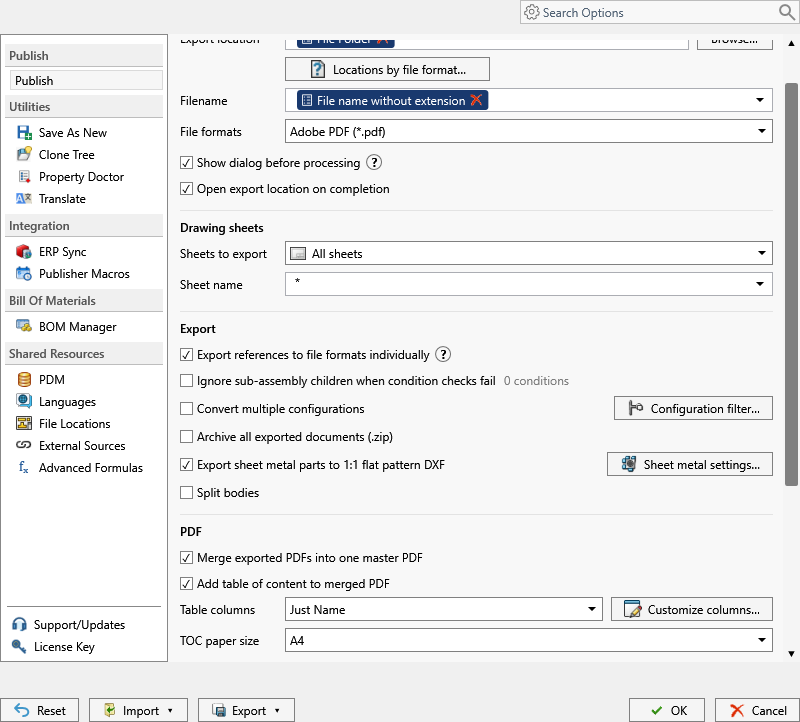
Several .pdf files from one drawing instead of one PDF with all sheets. The mechanism is the sheet filter: Sheets to export set to Sheets matching name exports only sheets whose names match the Sheet name pattern (* any text, ? one character). A pattern such as Machined gives a PDF with that sheet alone.
The pattern can contain (ConfigurationName), evaluated from the model before matching. Add Convert multiple configurations and (ConfigurationName) in the filename, and a drawing whose sheets are named after configurations gives one PDF per configuration: Bracket-Machined.pdf, Bracket-Welded.pdf. For sheets that aren’t configuration-named, run a profile or task per sheet pattern.
The manual way, and why it doesn’t scale
File > Save As PDF, open Options, choose the sheets, save, then again for the next sheet. Or export everything and split the PDF afterwards.
Three sheets, three exports, per drawing, per revision. And a sheet added last week is quietly missing from the customer’s set.
Export each sheet as its own PDF with the add-in
- Open the drawing in SOLIDWORKS, saved, references resolved (Get Latest first in a vault).
- On the PDMPublisher tab, select Settings, then Publish.
- Set Export location, such as
(TopAssemblyFolder)\Exports\(Revision), and the Filename pattern, such as(FileNameWithoutExtension)-(Revision);.pdfis added for you. - Under File formats, tick Adobe PDF (
pdf). - Set Sheets to export to Sheets matching name and enter the Sheet name pattern:
(ConfigurationName)for configuration-named sheets,(ConfigurationName)*when names carry a suffix, or a literal such asCustomer-*. - For one PDF per configuration, tick Convert multiple configurations, put
(ConfigurationName)in the Filename, and use the Configuration Filter to include (PROD*) or exclude (*Flat*) configurations. - Save the settings as a named profile so it’s one click next time. A second profile with another pattern covers another sheet family.
- Select
PDMPublisher > Publish, confirm the review dialog, and check Publishing results afterwards.
PDF is a Community Edition format of the add-in (with DXF and STEP), so a single drawing converts free. Community is limited to 5 references per run; Premium adds export locations by file format.
Automate it as a PDM task
PDMPublisher for PDM Professional runs the same engine as a task, so the drawing becomes separate sheet PDFs on a state change, not when somebody remembers.
- In PDM Administration, right-click Tasks, select New Task, choose PDMPublisher and name it. Tick the task hosts under Execution Method.
- On the Options page, set Export Location (
(VaultRootFolder)\Exports\Sheet PDFs, no trailing backslash) and Filename; PDM variables such as($PartNumber)are in the>...menu. - Under File Formats, tick Adobe PDF. Keep Export affected document on.
- Set Sheets to export and the Sheet name pattern as in the add-in.
- Enable Convert multiple configurations with
(ConfigurationName)in the Filename, or Ask user to select configuration on startup when the launcher should pick the configuration, and so the sheet. - Create one task per sheet family when sheets aren’t configuration-named: a Customer sheet PDF task with pattern
Customer*, a Manufacturing sheet PDF task withMFG*. - Pick Use this version of SOLIDWORKS (a year on the task host, or Latest). For release workflows, enable Get latest revision only so the version tied to the newest revision is exported.
- Attach the task to a workflow transition, leave it in the right-click menu, or run it from Scheduled Items.
Settings that matter for per-sheet PDFs
| Setting | What it does | Tip |
|---|---|---|
| Sheets to export | All sheets, or Sheets matching name. | A one-sheet drawing always exports its only sheet. |
| Sheet name pattern | * any text, ? one character; (ConfigurationName) evaluated first. | No match on a multi-sheet drawing exports every sheet and logs the fallback (2026.08.09+). |
| (ConfigurationName) in the pattern | Evaluated from the model, then matched against sheet names. | (ConfigurationName), (ConfigurationName)* or *(ConfigurationName)*. |
| Convert multiple configurations | Exports every configuration, not only the active or launched one. | Put (ConfigurationName) in the filename. |
| Configuration Filter | Include or exclude configurations by name or wildcard. | Exclude *Flat* so flat patterns produce no PDF. |
| Filename | Static text, placeholders, custom properties or PDM variables. | (Revision) for released files; keep names unique. |
Naming and folders
Placeholders resolve when the job starts, so every sheet PDF is named and filed the same way:
(FileNameWithoutExtension)-(ConfigurationName)with pattern(ConfigurationName):Bracket-Machined.pdf,Bracket-Welded.pdf.(FileNameWithoutExtension)-(ConfigurationName)-(Revision): the same, with the PDM revision for released files.(VaultRootFolder)\Released PDFs\($ProjectNumber)\(ConfigurationName)in the task: a folder per configuration.
Customize Location (Premium in the add-in, standard in the task) gives the
Tips and troubleshooting
- Got one PDF with every sheet instead? On a multi-sheet drawing, a pattern that matches nothing falls back to all sheets and logs it. Compare the evaluated configuration name with the sheet names:
Machineddoesn’t matchMachined-DXFunless the pattern is(ConfigurationName)*. - A one-sheet drawing ignores the pattern and always exports its only sheet.
- Without
(ConfigurationName)in the filename, PDFs from different configurations overwrite each other. - Name sheets after configurations in your drawing templates. That’s what makes the per-configuration export automatic.
- Community Edition of the add-in does PDF, DXF and STEP only, up to 5 references per run: fine for single drawings, not an assembly’s drawing set. The PDM task is licensed per vault with no such limit.
Availability
Available in PDMPublisher for SOLIDWORKS (the add-in) and PDMPublisher for PDM Professional (the task).
Documentation and related features
- Run a Publish Job (PDMPublisher for SOLIDWORKS)
- Sheets to Export
- SOLIDWORKS drawing documents
- Publishing profiles and company settings
- Extension-specific export locations
- Run as a SOLIDWORKS PDM task
- Convert SLDDRW to PDF
- Merge multiple SOLIDWORKS drawings into one PDF
- Convert SLDPRT to STEP
Frequently asked questions
How do I export each sheet of a SOLIDWORKS drawing as a separate PDF?
Set Sheets to export to Sheets matching name with a Sheet name pattern. For configuration-named sheets, use (ConfigurationName) with Convert multiple configurations and (ConfigurationName) in the filename: one PDF per configuration.
What if my sheets are not named after configurations?
Run one profile or task per sheet pattern, such as Customer* and MFG*, each with its own filename and folder.
Why did PDMPublisher export all sheets anyway?
The evaluated pattern matched no sheet name, so it fell back to every sheet and logged it (2026.08.09 and later). Check spelling and the configuration name.
Does this work in the PDM task too?
Yes. Sheets to export and Sheet name pattern are shared settings. Combine them with Convert multiple configurations or Ask user to select configuration on startup.