
Forty drawings at every revision is an afternoon of Save As. PDMPublisher exports the drawing of an assembly and of every referenced part in one run from SOLIDWORKS, and the PDM Professional task does it for any selection of vault files, a folder, or a workflow transition.
Quick answer
- In SOLIDWORKS, open the assembly, tick Adobe PDF (pdf) and Export references to file formats individually, select Publish: every same-name drawing of the assembly and its components becomes a PDF.
- In PDM, select the files in File Explorer and run the task, or attach it to a transition or Scheduled Items.
- Tick Archive all exported documents (.zip) for one ZIP to email.
In SOLIDWORKS: step by step
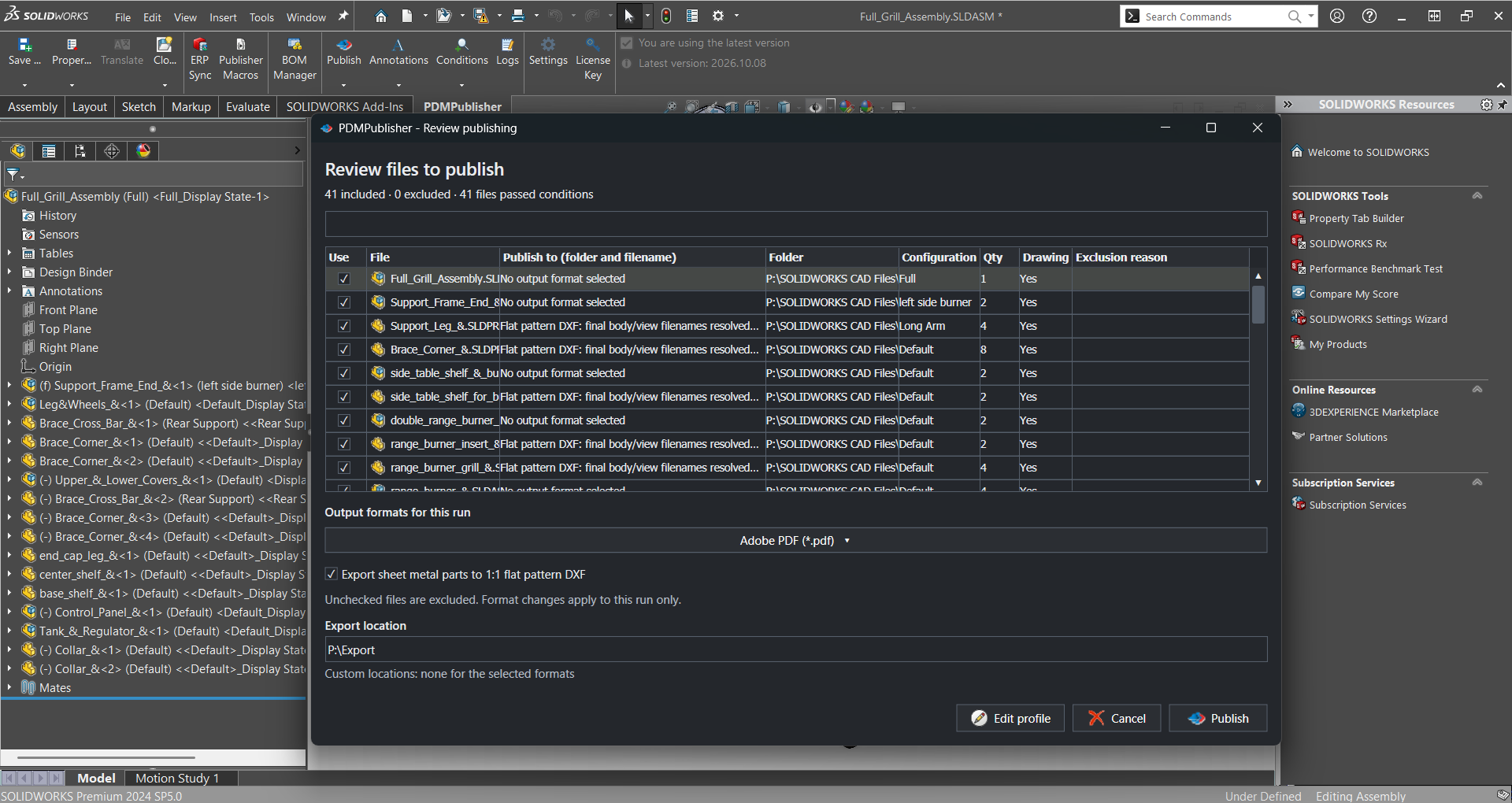
- Open the top-level assembly with every reference resolved. Each component’s drawing must sit beside it with the same filename.
- On the PDMPublisher tab, select Settings > Publish; tick Adobe PDF (pdf), set Export location and Filename, for example
(FileNameWithoutExtension)-(Revision). - Tick Export references to file formats individually so every component’s drawing is exported, not only the assembly drawing.
- On the Conditions page, add rules for which references are included, for example a property that must not equal Purchased. Tick Ignore sub-assembly children when condition checks fail to drop a rejected sub-assembly’s parts too.
- Optionally tick Archive all exported documents (.zip).
- Select PDMPublisher > Publish, confirm the review dialog, and check Publishing results.
Tip. The Community Edition handles 5 references per run; a full drawing set needs Premium or the PDM task.
As a PDM task: on every release
PDMPublisher for PDM Professional runs the same engine as a task, so the export happens when the file changes state, not when somebody remembers.
- In PDM Administration, right-click Tasks > New Task, choose PDMPublisher, name it and tick the task hosts.
- On the Options page set Export Location and Filename, tick Adobe PDF, and keep Export affected document on.
- Set Template to a PDM BOM layout and enable Export references to file formats individually when the task runs on assemblies.
- Enable Use PDM search to locate drawings when drawings live in other folders than their models.
- Run it three ways: select files in File Explorer and right-click, attach it to a workflow transition, or add Scheduled Items (folders, searches or a CSV list) and let PDM run it on a timer.
Settings that matter
| Setting | What to put | Why |
|---|---|---|
| Export references individually | On | One PDF per referenced drawing, not just the top-level one. |
| Conditions | Property not equal Purchased, say | Skip purchased or library parts. |
| Archive (.zip) | On for supplier packages | One file to email or upload. |
| Scheduled Items (task) | Folders, searches or a CSV of file names | Batch without anyone selecting files. |
Naming examples
Placeholders, properties and revision in the filename, shown in the add-in.
(FileNameWithoutExtension)-(Revision)givesBracket-B.pdffor every drawing in the set.(VaultRootFolder)\Released PDFs\($ProjectNumber)in the task files the batch by project.($PartNumber)_Rev($Revision)names PDFs by PDM part number instead of filename.
If something looks wrong
- Not every drawing was captured: the job needs local copies of every reference. Get Latest first.
- A component produced no PDF: it has no same-name drawing beside it. In the task, enable Use PDM search to locate drawings.
- The task stopped at launch with an error: no files were selected and no Scheduled Items are set up. It needs one or the other.
- CSV import found nothing: it reads a filename, file, filepath or path column and searches the vault; check the header.
Keep going
Documentation
Frequently asked questions
How do I batch convert SOLIDWORKS drawings to PDF?
From the add-in, open the assembly, tick Adobe PDF and Export references to file formats individually, and Publish. From PDM, select the files and run a PDMPublisher task, or feed it a CSV or Scheduled Items.
Can I convert a whole folder of drawings in the vault to PDF?
Select the files in File Explorer and launch the task from the right-click Tasks menu. Or enable Ask user to specify files on task launch and import the list From CSV.
Can the batch run overnight on a schedule?
Yes. Set up the task’s Scheduling page and list the files on Scheduled Items; PDMPublisher runs that list every time the schedule fires.
Is a batch PDF export free with the add-in?
PDF is a Community Edition format, but Community is limited to 5 references per run. A bigger batch needs Premium, or the PDM task, which is licensed per vault.