
Filenames, output folders and custom properties rarely come from a single SOLIDWORKS property. The released filename might be the part number plus the revision, the destination folder might depend on a project code stored in an ERP database, and the material on a drawing annotation might live in a SQL table nobody wants to duplicate in custom properties. PDMPublisher for SOLIDWORKS handles this with two Shared Resources: External Sources, reusable SQL Server queries that return a value for the document being processed, and Advanced Formulas, named expressions that combine document values, properties, functions and external sources into one result that any filename, folder or property menu can insert.
What External Sources and Advanced Formulas do
Both live under PDMPublisher > Settings > Shared Resources. A shared resource supplies a reusable definition; individual profiles and commands still decide whether to use it. Once defined, a source or formula appears in the value menus of the workflows that support it: the Filename and destination templates of Save As New, the per-file New name and Destination folder cells of Clone Tree, property cells in Property Doctor, and supported publishing templates.
An External Source is a named SQL Server connection plus one SELECT statement. When a workflow evaluates it, PDMPublisher fills the query parameters from the document (a configuration name, filename or property value), runs the query, and uses the returned column as the value. Credentials are protected for your Windows account and never leave the computer.
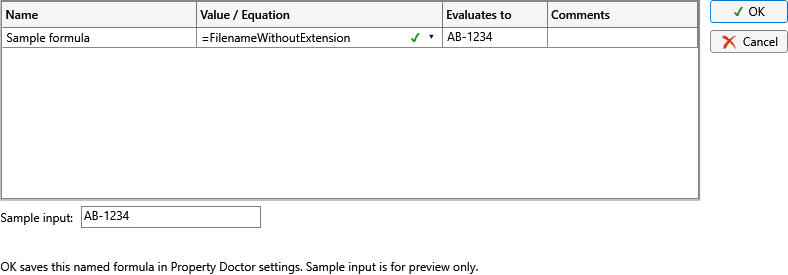
An Advanced Formula is a named equation. The formula editor shows each formula’s Name, Value / Equation, a live Evaluates to preview and free-text Comments. Formulas are definitions, not copied results: PDMPublisher evaluates a formula in the context of the document and configuration being processed, every time it is used.
Why it matters
- Stop re-keying ERP data into SOLIDWORKS. Material, project number, customer code or supplier part number can be read from the database that already owns them, at the moment a file is copied, published or its properties are fixed.
- One naming rule, everywhere. A formula named
Released filenameis defined once and inserted into Save As New, Clone Tree and publishing templates. Changing the rule changes every workflow that uses it. - Consistent release packages. When the drawing PDF, the STEP and the DXF all take their names and folders from the same formula, suppliers receive a coherent package and nobody has to reconcile three naming conventions.
- Property Doctor at scale. A source mapped to specific Property Doctor columns lets you fill hundreds of missing Material or Description values from SQL in one Apply.
How an External Source works
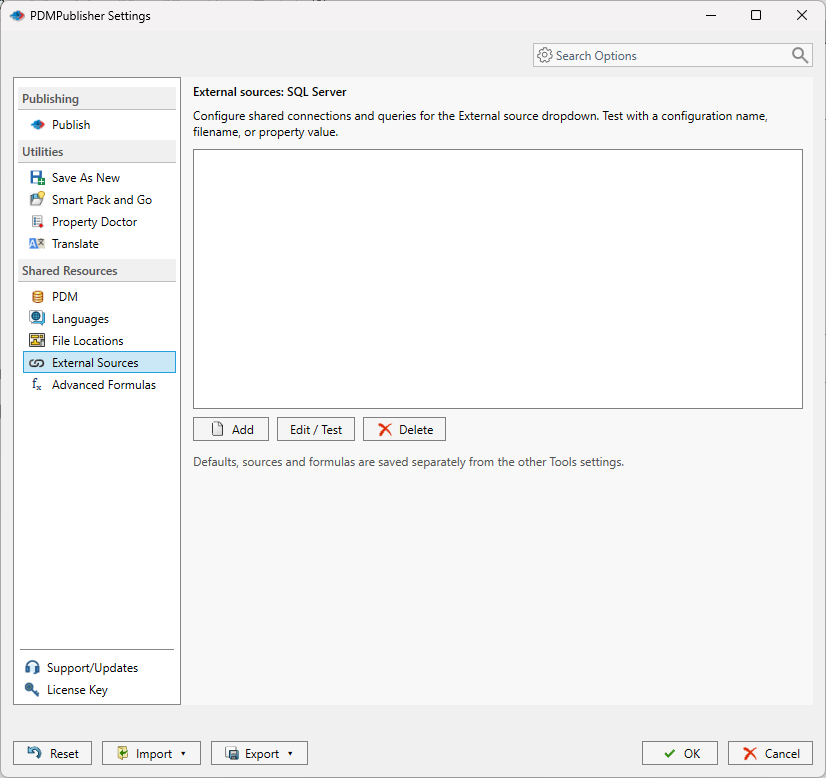
- Open PDMPublisher > Settings > External Sources. The page lists saved SQL Server queries; the list note reminds you that connection strings are protected for your Windows account.
- Select Add to create a source, or select an existing one and choose Edit / Test. The source editor opens.
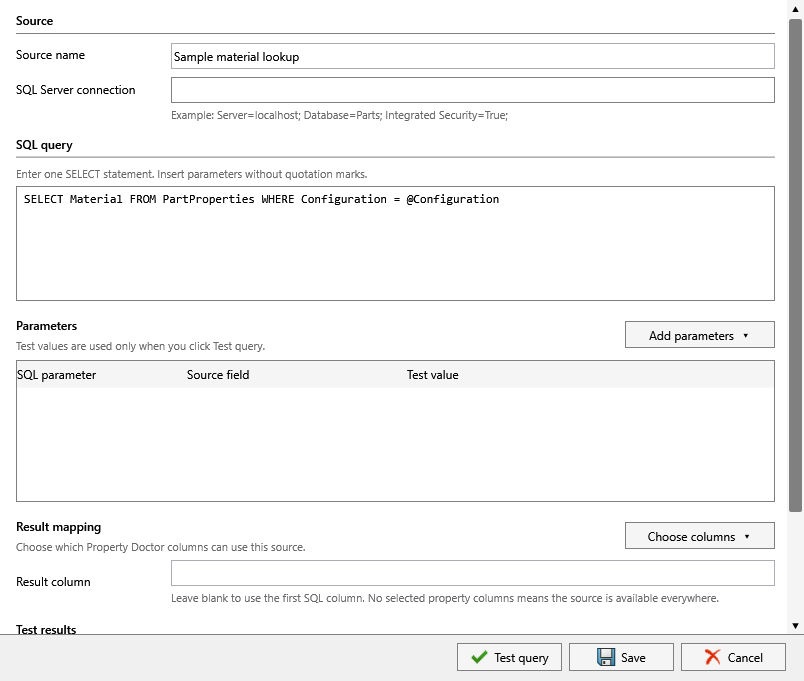
- Enter a Source name that explains the returned value, for example
Sample material lookup. - Enter the SQL Server connection. The editor shows the pattern
Server=localhost; Database=Parts; Integrated Security=True;. The field is a password box, so the string is not displayed after entry. - Enter one
SELECTstatement in SQL query. Insert parameters without quotation marks, for exampleSELECT Material FROM PartProperties WHERE Configuration = @Configuration. - Under Parameters, use Add parameters to map each SQL parameter to a Source field of the document and give it a Test value. Test values are used only when you select Test query.
- Under Result mapping, use Choose columns to decide which Property Doctor columns can use this source, and optionally set the Result column. Leave it blank to use the first SQL column; no selected property columns means the source is available everywhere.
- Select Test query and check Test results. Then select Save, and OK in the Settings dialog.
A successful connection does not guarantee that every document returns a row. Define the expected empty-result behavior in the consuming workflow, and test the source with representative data before inserting it into a property, formula, filename or annotation.
External Sources: every control
| Control | What it does | Notes |
|---|---|---|
| Add | Creates a named source and query definition. | Opens the source editor. |
| Edit / Test | Updates the selected definition and tests it with a configuration name, filename or property value. | Disabled until a source is selected. |
| Delete | Removes the selected definition after confirmation. | Review formulas and profiles that referenced it. |
| Close | Closes the sources list. | Definitions are committed with OK in Settings. |
| Source name | The name shown in the External source submenu of value menus. | Use a descriptive name that explains the returned value. |
| SQL Server connection | The connection string, entered in a password box. | Example: Server=localhost; Database=Parts; Integrated Security=True;. Stored locally and protected for your Windows account. |
| SQL query | Exactly one SELECT statement. | Insert parameters without quotation marks (@Configuration, not '@Configuration'). |
| Add parameters | Adds rows to the parameter grid. | Each row: SQL parameter, Source field, Test value. |
| Source field | The document value supplied to the parameter at run time. | Configuration name, filename or a property value. |
| Test value | Sample value used only by Test query. | Has no effect on real evaluation. |
| Choose columns | Selects which Property Doctor columns can use this source. | No selected columns means the source is available everywhere. |
| Result column | The SQL column returned as the value. | Leave blank to use the first SQL column. |
| Test query | Runs the query with the test values and shows Test results. | Confirms connectivity and the returned text. |
| Save / Cancel | Keeps or discards the definition. | Settings are written when you select OK in the Settings dialog. |
How an Advanced Formula works
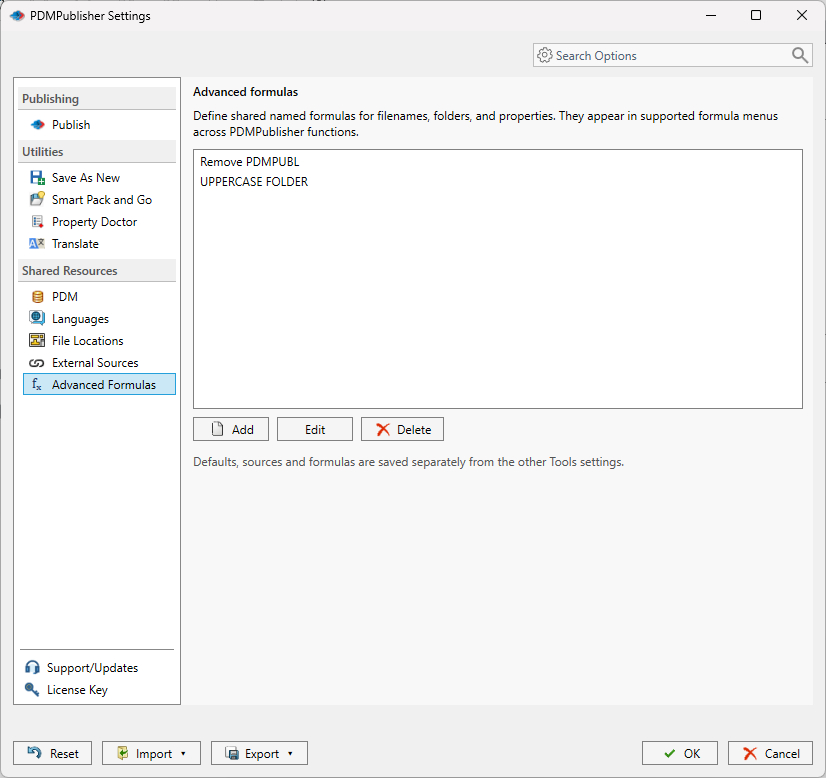
- Open PDMPublisher > Settings > Advanced Formulas.
- Select Add to create a formula or Edit to open the selected one. The formula editor opens as a grid.
- Type a Name that describes the result, such as
Released filenameorCustomer output folder. The name is what users see when they insert the formula from another workflow. - In Value / Equation, type an equation starting with
=, or use the arrow and right-click menus to insert functions and sources. The supplied example is=FilenameWithoutExtension. - Enter a Sample input: a filename or full file path for document values, a configuration name, or a sample property or SQL value. The selected source and functions are applied to this input and the result appears under Evaluates to. Sample input is for preview only.
- Add Comments so the next administrator understands the intent.
- Select OK to save the named formula, then OK in Settings.
Advanced Formulas: every control
| Control | What it does | Notes |
|---|---|---|
| Add | Creates a named formula. | Opens the formula editor. |
| Edit | Opens the selected formula for changes. | Existing profiles pick up the change on their next evaluation. |
| Delete | Removes the selected formula after confirmation. | Review existing profiles that refer to it. |
| Name | The formula’s identity in every insert menu. | Describe the result, not the mechanics. |
| Value / Equation | The expression, starting with =. | The arrow and right-click menus insert functions and sources so you do not have to remember the syntax. |
| Evaluates to | Live preview of the equation applied to the sample input. | Preview only; real evaluation uses the processed document. |
| Comments | Free-text notes stored with the formula. | Included in settings bundles. |
| Sample input | Filename, full path, configuration name or sample property/SQL value used for the preview. | For preview only. |
| OK / Cancel | Saves or discards the formula. | The editor note states that OK saves the named formula in Property Doctor settings; the formula is then shared by every supported menu. |
The documentation does not publish a fixed list of formula functions. The set available on your installation is the one shown in the equation cell’s arrow and right-click menus; build formulas from that menu rather than from memory. Full details are in the Advanced Formulas documentation.
Where formulas and sources can be inserted
| Workflow | Field | How to insert |
|---|---|---|
| Save As New | Filename template and Save the new to this destination folder template. | The template menu lists document values, properties, folder values, PDM variables, serial numbers, prompted text and named formulas. |
| Clone Tree | New name and Destination folder per row. | Each cell’s menu offers document values, properties, folder values, PDM values, serial numbers or formulas. |
| Property Doctor | Any editable property cell, plus fill operations. | Use a value menu or open an advanced formula; external sources appear in the External source submenu for the columns selected in Result mapping. Formula and linked-value cells are evaluated for the document row where they are applied. |
| Publishing templates | Supported filename, folder and property menus. | Saved formulas and external SQL sources are part of the expanded template and property evaluation of the add-in. |
| Annotations | SQL value in an annotation. | Uses the separate Edit SQL Query dialog and the ($SQL-...) placeholders described below. |
SQL query placeholders in annotations
Annotations have their own SQL mechanism that predates External Sources and works in both products. Add an SQL value to the annotation, select the pencil icon to open Edit SQL Query, enter the SQL Server connection string and a query containing a file placeholder, then select Test Query and confirm the expected value appears under Output. In the SOLIDWORKS add-in the placeholder is evaluated for the active document or reference currently being published.
A Windows-authenticated connection string looks like Server=localhost;Database=TestPDMSql;Trusted_Connection=True;.
- Worked example 1:
SELECT ProjectNumber FROM FileProperties WHERE FileName = '($SQL-Filename)'evaluates forBracket.sldprtasSELECT ProjectNumber FROM FileProperties WHERE FileName = 'Bracket.sldprt'. - Worked example 2:
SELECT Material FROM PartProperties WHERE FileName = '($SQL-Assembly)'looks up material by the assembly filename. When testing in the dialog, replace the placeholder with a real name such as'Full_Grill_Assembly.sldasm', because the test has no file context. - Worked example 3 (External Source, not annotation):
SELECT Material FROM PartProperties WHERE Configuration = @Configurationwith@Configurationmapped to the configuration-name source field returns a configuration-specific material for Property Doctor.
| Placeholder | Value used in the query | Use when |
|---|---|---|
($SQL-Filename) | The filename being processed, with its existing extension. | The database row is keyed by the exact file being published. |
($SQL-Part) | The filename changed to the .sldprt extension. | The row is keyed by the part filename, even when annotating a drawing PDF. |
($SQL-Assembly) | The filename changed to the .sldasm extension. | The row is keyed by the assembly filename. |
($SQL-Drawing) | The filename changed to the .slddrw extension. | The row is keyed by the drawing filename. |
Use a database account with only the permissions required to read the data. If a connection string contains credentials, restrict access to exported SOLIDWORKS add-in profiles, because annotation SQL settings travel with a Publish profile whereas External Source credentials do not.
Set it up in the SOLIDWORKS add-in
- In the CommandManager, open PDMPublisher > Settings. Use Search Options and type external or formula if you cannot find the page.
- On Shared Resources > External Sources, select Add, fill in Source name, SQL Server connection and SQL query, map Parameters, set Result mapping, select Test query, then Save.
- On Shared Resources > Advanced Formulas, select Add, name the formula, build the equation from the arrow menu (including any external source), check Evaluates to with a Sample input, then OK.
- Select OK in the Settings dialog to commit both resources.
- Open the workflow that will use them: the Save As New settings page for its Filename template, a Clone Tree row’s New name cell, or a Property Doctor property cell. Insert the formula or source from the menu.
- Run the workflow on a non-production document and check the result. For publishing jobs, review the Results and Detailed log tabs under PDMPublisher > Logs.
Recipes
- Material from ERP in Property Doctor. Source
Material by configuration: querySELECT Material FROM PartProperties WHERE Configuration = @Configuration, parameter@Configurationmapped to the configuration name, Choose columns set to the Material column. In Property Doctor, fill the Material column from the External source submenu and select Apply changes. Community Edition applies up to 5 rows at a time. - Released filename for every copy. Formula
Released filenamebuilt from the document’s filename-without-extension function plus a separator and the revision property, inserted into the Save As New Filename template and the Clone Tree New name cells. Test it with a Sample input that contains characters invalid in Windows filenames. - Project number on the drawing PDF. In the Publish profile’s Annotations, add an SQL value with
SELECT ProjectNumber FROM FileProperties WHERE FileName = '($SQL-Drawing)', test it, and place the annotation in the title-block area. See Watermark your PDFs for placement.
Tips, limits and troubleshooting
- Credentials never travel. Database credentials remain local and are not included in exported settings, PIN shares or Company Settings. After importing a configuration, re-enter credentials for external sources that do not already have matching local credentials.
- Formulas are saved separately. Defaults, external sources and formulas are stored apart from the other utility settings, but a complete settings bundle includes them (without secrets).
- Export before a broad change. One shared formula can affect several profiles and utility workflows. Export all settings first.
- A source on another computer. If a formula uses a property or external source, confirm that resource is available on every computer that imports the settings.
- Empty rows. A query that returns no row contributes an empty value. Decide in the consuming workflow what an empty value means, and keep separators in templates in mind so an empty value does not leave a trailing dash.
- Invalid characters. Build and test formulas with documents that contain values, missing values, configuration-specific values and characters that are invalid in Windows filenames.
- Least privilege. Use a database account with only the permissions required to run the query. Do not place passwords in query text, profile names, formulas or annotations.
- Annotation SQL test has no file context. When testing an annotation query, substitute a real filename for the placeholder; PDMPublisher fills it in only during a publish job.
- Deleted resources. Deleting a source or formula prompts for confirmation, but profiles that referenced it are not updated automatically. Review them.
Availability
Available in PDMPublisher for SOLIDWORKS, the add-in that runs inside SOLIDWORKS. Not part of the PDM Professional task. External Sources and Advanced Formulas are Shared Resources of the PDMPublisher for SOLIDWORKS add-in. The PDM Professional task reads its data from PDM variables, data cards and BOM templates instead; the only SQL feature both products share is the SQL query placeholder inside annotations.
Documentation and related features
- External Sources documentation
- Property Doctor
- Save As New
- Clone Tree
- Watermark your PDFs
- Publishing profiles and Company Settings
- SOLIDWORKS PDM integration
Frequently asked questions
Can PDMPublisher read values from a SQL Server database?
Yes. Define an External Source under Settings > Shared Resources > External Sources with a connection string, one SELECT statement and parameters mapped to document fields. The source then appears in the External source submenu of supported property, formula, filename and folder menus.
What is an Advanced Formula in PDMPublisher for SOLIDWORKS?
A named equation, such as =FilenameWithoutExtension, that is evaluated for the document and configuration being processed. Formulas are inserted by name into Save As New, Clone Tree, Property Doctor and supported publishing templates, so one definition drives every workflow.
Are SQL passwords included when I export or share settings?
No. Connection strings are protected for your Windows account and are excluded from settings bundles, PIN shares and Company Settings. Re-enter them on the destination computer after importing.
What is the difference between an External Source and an annotation SQL query?
An External Source is a reusable definition available to property, filename and folder menus in the SOLIDWORKS add-in. An annotation SQL query is configured inside a Publish profile’s annotation with the ($SQL-Filename), ($SQL-Part), ($SQL-Assembly) and ($SQL-Drawing) placeholders and travels with that profile.
Why does my query test succeed but the document gets an empty value?
A successful connection does not guarantee that every document returns a row. Check the parameter mapping and the value the document actually supplies, and define the expected empty-result behavior in the consuming workflow.
Where is the list of formula functions?
The functions and sources available on your installation are listed in the arrow and right-click menus of the Value / Equation cell in the formula editor. Use the Sample input field and the Evaluates to column to preview the result before saving.