
A supplier calls with a question about Support_Leg_&.pdf. Which revision do they have? The title block says B, but the PDF was exported while the drawing was still Under Review and nobody can tell. Drawings printed from a PDF lose the context PDM knows about them. This article sets up two annotations: a small stamp with revision, state and date on every sheet, and a rotated watermark that marks review copies.
What you’ll end up with
- Every drawing PDF carries a stamp like
Rev B · Released · 10-8-2026on every sheet, in the same spot each time. - A second annotation,
Under Reviewrendered as a rotated, semi-transparent watermark across the sheet. - The watermark comes from the
(State)placeholder, so a Released run printsReleasedand a review run printsUnder Review. - In the SOLIDWORKS add-in, the two annotations live in a Publish profile. You can export them as an
.edmtdffile and import them into another profile.
Before you start
- A working PDF export. Annotations are added to exported PDF documents, so set up Export Location, Filename and the PDF format first. See Build the complete release package on Approve.
- In the PDM task: the files have a recorded revision.
(Revision)is empty for a file with no revision, so the stamp would readRev · Released. - In the SOLIDWORKS add-in: if you want vault values such as revision and state, open PDMPublisher > Settings > PDM, turn on Use vault and pick the vault. Without it the placeholder menu offers values from the open document and custom properties only.
- A drawing to test on. Annotations are placed by percentage of sheet width and height, so test on the sheet sizes you really use.
Open the annotation editor
The editor is the same in both products. The difference is where it lives and where the values come from.
- PDM task: in the Administration tool, open the task and go to the Annotations page. The table below the toolbar lists the annotations and lets you pick the one you’re editing.
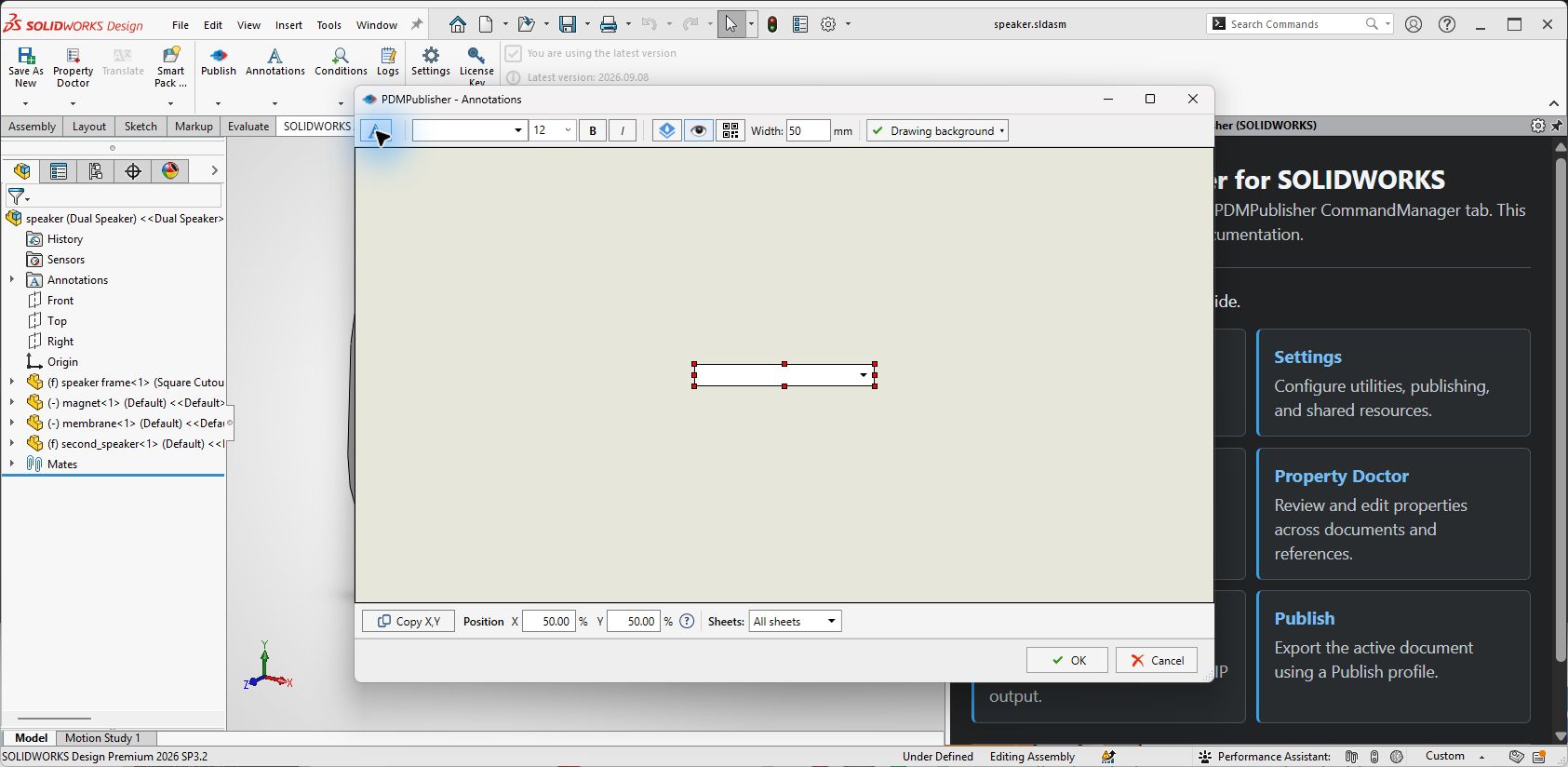
- SOLIDWORKS add-in: select PDMPublisher > Annotations to edit the active Publish profile, or use the command arrow to open a named profile.
- Click Add annotation. A new box appears in the page preview. New annotations are active by default.
The drawing area is only a positioning preview. Adding or moving a box there doesn’t add a note to the SOLIDWORKS drawing.
Annotation 1: the revision stamp
- In the annotation text, type
Revthen insert the revision placeholder from the value menu. In the task that’s(Revision). In the add-in, pick it from the placeholder menu. - Add
·then the state placeholder(State)then·and the date placeholder(Date). The date uses the task host’s short-date format with/replaced by-. - Set the font and size. 10 pt regular is enough for a title block stamp.
- Set Position X / Y (%). X is a percentage of sheet width, Y of sheet height. Drag the box near the title block, then copy the numbers so every sheet gets the same spot.
- Leave Sheets at
All sheets. - Keep Active on.
Annotation 2: the state watermark
- Click Add annotation again.
- Insert the state placeholder
(State)as the only text. Or type a fixed label such asREVIEW COPYif the watermark is for a review-only task or profile. - Turn on Watermark. PDMPublisher rotates the annotation and makes it semi-transparent so it doesn’t hide the drawing.
- Pick a large size and Bold. The watermark should read from across the room.
- Set Position X / Y (%) to
50and50so it sits in the middle of the sheet. - Leave Sheets at
All sheetsor pickFirst sheetif only the cover sheet should carry it.These sheetstakes sheet names separated by commas. - Click OK to save.
Settings used
| Setting | Value | Why |
|---|---|---|
| Annotation 1 text | Rev (Revision) · (State) · (Date) | Revision, state and export date on every sheet |
| Annotation 1 font | 10 pt, regular | Small enough for the title block area |
| Annotation 1 Position X / Y (%) | Near the title block, same numbers on every sheet | Lands in the same spot each run |
| Annotation 1 Sheets | All sheets | Every sheet is stamped |
| Annotation 2 text | (State) | Watermark text follows the workflow state |
| Annotation 2 Watermark | On | Rotated and semi-transparent |
| Annotation 2 font | Large, Bold | Readable at a glance |
| Annotation 2 Position X / Y (%) | 50 / 50 | Centered on the sheet |
| Annotation 2 Active | On for review tasks, off for the release task | Keep the setup, skip it when not wanted |
| Add-in only: Settings > PDM > Use vault | On, vault selected | Makes revision and state available in the menu |
Run it and check the result
Export one drawing first. In the add-in, select PDMPublisher > Publish with the profile. When the job finishes, Publishing results lists each PDF with its destination; select one and use Open file to see the stamp and watermark. The Detailed log tab keeps the processing record.
In the PDM task, run the task from the right-click menu on one drawing. With Vault Activity Logs on, the Task Details tab lists the PDFs that were checked in, and Open Log File shows the full log.
Open the PDF and check three things: the stamp reads the right revision and state, the watermark doesn’t hide dimensions, and both appear on every sheet you expected.
If a placeholder shows up as empty, the value was empty or unavailable for that file. Revision is empty for files with no recorded revision. When a drawing’s variable is empty, PDMPublisher may read it from the matching part or assembly. Test this on one file before relying on it.
Variations
- Show who exported it. Add
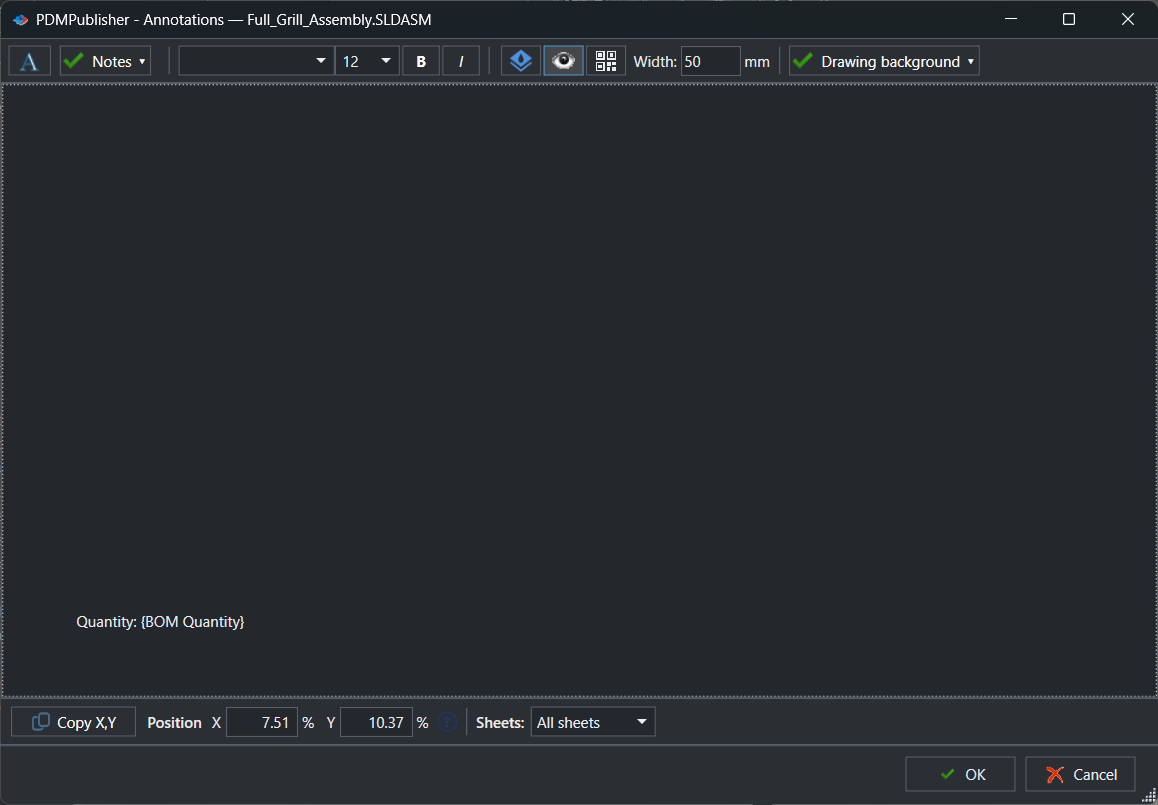
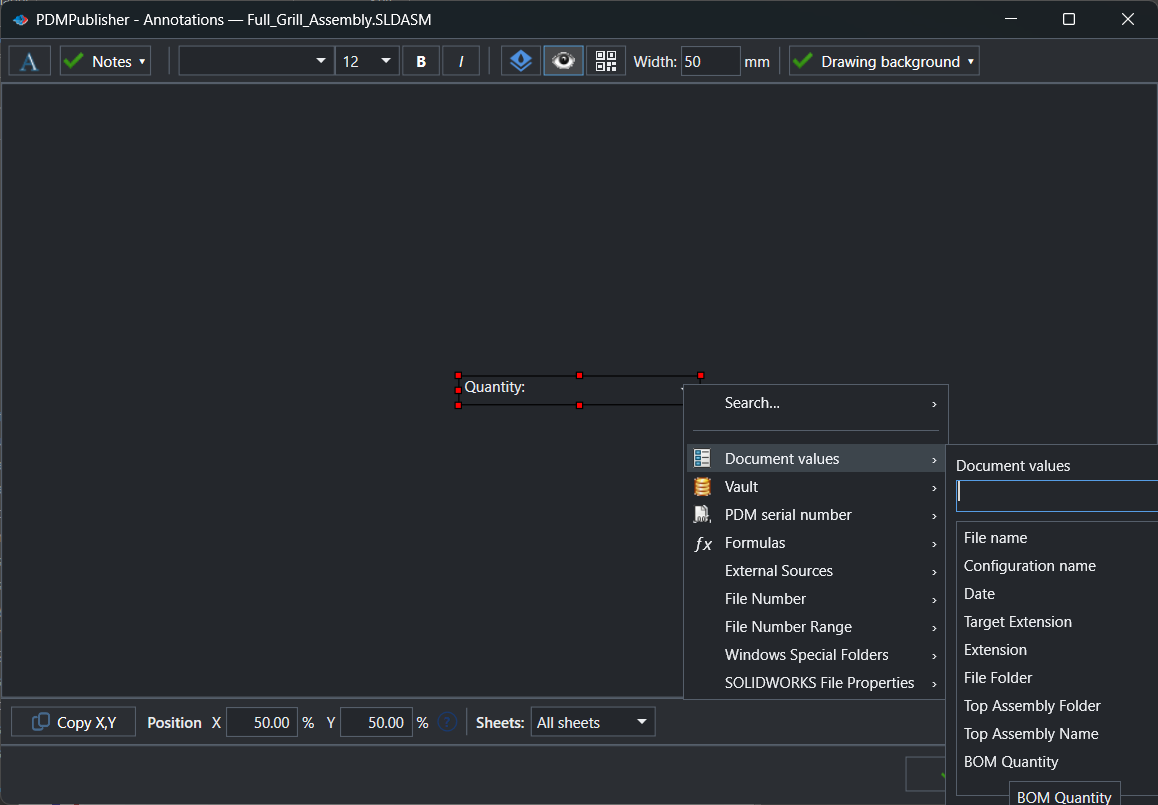
(LaunchingUser)to the stamp. In the task this is the PDM user who launched it, which can differ from(User)on the task host. - Put the quantity on the sheet. Add
(BOMQuantity)to a note on part drawings published from an assembly. The task supports it and needs the BOM Template; in the add-in it appears in the placeholder menu shown in the screenshot above. - Pull text from a database. Add an SQL value to the annotation, open Edit SQL Query, enter the connection string and a query with
($SQL-Filename)and use Test Query to check the Output. See External sources and formulas. - Turn an annotation into a QR code with the QR code toggle and set Width (mm). The evaluated text, such as the filename and revision, becomes the code.
Where it goes wrong
| Symptom | Cause | Fix |
|---|---|---|
Stamp reads Rev · with no letter | The file has no recorded revision, so (Revision) is empty | Assign a revision, or drop the separator so the empty value leaves no gap |
| Revision and state aren’t in the add-in’s menu | No vault selected, or no local vault view | Settings > PDM: turn on Use vault and pick the vault. The menu only shows values available in the current context |
| Annotation shows on the first sheet only | Sheets set to First sheet | Set it to All sheets |
| Annotation set up but not on the PDF | Active (Show annotation in the add-in) is off | Turn it back on; the setting is kept with the annotation |
| Annotation lands in a different place on A1 and A4 | Position is a percentage of sheet size, and the title blocks differ | Use one annotation per sheet rule, or place it where both formats have space |
| Imported annotations wiped the old ones | Import replaces the annotation collection of the selected profile | Export the current annotations or the profile before importing |
| SQL value is blank | Query returns nothing for that filename | Replace the placeholder with a real filename in the dialog and use Test Query |
Verified against
- annotations.md
- pdmpublishersolidworks_annotations.md
- pdmpublisher-annotations/active.md
- pdmpublisher-annotations/add-annotation.md
- pdmpublisher-annotations/annotation-text.md
- pdmpublisher-annotations/position.md
- pdmpublisher-annotations/sheets.md
- pdmpublisher-annotations/sql-query-placeholders.md
- pdmpublisher-annotations/text-formatting.md
- pdmpublisher-annotations/watermark.md
- pdmpublishersolidworks-annotation-files.md
- pdmpublishersolidworks_pdm-settings.md
- pdmpublishersolidworks-publish.md
- pdmpublishersolidworks_workflow.md
- pdmpublisher_task_details.md
- pdmpublisherspecialvariable.md
- pdmpublisherfaq.md
- pdmpublishersolidworks_comparison.md
- pdmpublisher-product-differences.md
Availability
Available in PDMPublisher for SOLIDWORKS (the add-in) and PDMPublisher for PDM Professional (the task). Annotations work in the PDM Professional task and the SOLIDWORKS add-in, including the free Community Edition. The task reads PDM variables from the vault; the add-in reads the open document and only offers vault values when a vault is selected under Settings > PDM.
Documentation and related features
- Publishing annotations in the SOLIDWORKS add-in
- Annotations task page
- Watermark your PDFs
- SOLIDWORKS drawing documents
- Build the complete release package on Approve
- External sources and formulas in filenames and annotations
- Publishing profiles and company settings
Frequently asked questions
How do I add the PDM revision to a PDF automatically?
Add an annotation with the (Revision) placeholder. The PDM task reads it from the vault; the add-in needs a vault selected under Settings > PDM.
Can PDMPublisher watermark a drawing PDF with its workflow state?
Yes. Make an annotation with the (State) placeholder and turn on Watermark. PDMPublisher rotates it and makes it semi-transparent.
Does the annotation change the SOLIDWORKS drawing?
No. The annotation is added to the exported PDF. The preview is for positioning only and adds nothing to the drawing file.
Can I put a watermark on the first sheet only?
Yes. Each annotation has its own Sheets setting: All sheets, First sheet, or These sheets with names separated by commas.