
An assembly moves to Released and the shop still waits. Somebody has to open every drawing, print to PDF, export each part to STEP, unfold the sheet metal, and zip it all for the supplier. If that person is busy, the package is late or incomplete. This article sets up a PDMPublisher PDM task that builds the whole package on the Under Review → Released transition, with no one at the keyboard.
What you’ll end up with
One approval of Full_Grill_Assembly.SLDASM in project P-24017 produces this under C:\PDMVault\Released Packages\P-24017\Full_Grill_Assembly:
- A PDF of every drawing in the assembly, named like
Support_Leg-RevB.pdf. - A STEP file for every part and sub-assembly, named like
Brace_Corner-RevB.step. - A 1:1 flat-pattern DXF for every sheet metal part, named like
Support_Leg-RevB-FlatPattern.dxf. - One master PDF with all drawings merged, a table of contents page and a bookmark per drawing.
- A ZIP archive of the exported documents, ready to send.
- A task log in
C:\PDMVault\Logs\PDMPublisherso you can check what was created.
Before you start
- PDMPublisher is added to the vault and the license is activated. The task is licensed per vault and comes with a 7-day trial.
- A task host computer with SOLIDWORKS installed. The task host must be allowed to run PDMPublisher in Task Host Configuration.
- A PDM BOM layout with a
<Name>column, a<Configuration>column and a<RefCount>quantity column. The task uses it to find the references and quantities. - A folder
C:\PDMVault\Logs\PDMPublishercreated by hand, where the task host account can add files. - A PDM variable
ProjectNumberon the data card, set toP-24017on the files. - Every file in the assembly has a recorded revision (A, B or C). The task will use the newest revision, and a file with no revision fails.
- The task host has local copies of the assembly and its references. References without local copies aren’t captured, so do a get latest on the task host first.
Create the task
- Open the SOLIDWORKS PDM Administration tool. Right-click Tasks and select New Task….
- Name the task
Release package. This is the name users see in the right-click menu. - On the Add-in page, pick PDMPublisher in the Add-in dropdown and click Next.
- On the Execution Method page, check the task host computer. If the list is empty, right-click the PDM tray icon, open Task Host Configuration and permit PDMPublisher there.
- Skip the Scheduling page. This task runs from the workflow, not a schedule.
- Work through the Options page as described below, then click OK.
A task can be attached to a workflow transition or launched from the right-click menu. Open the Under Review → Released transition in the workflow editor and add the task as a transition action; the PDM help covers that dialog.
Set the output and formats
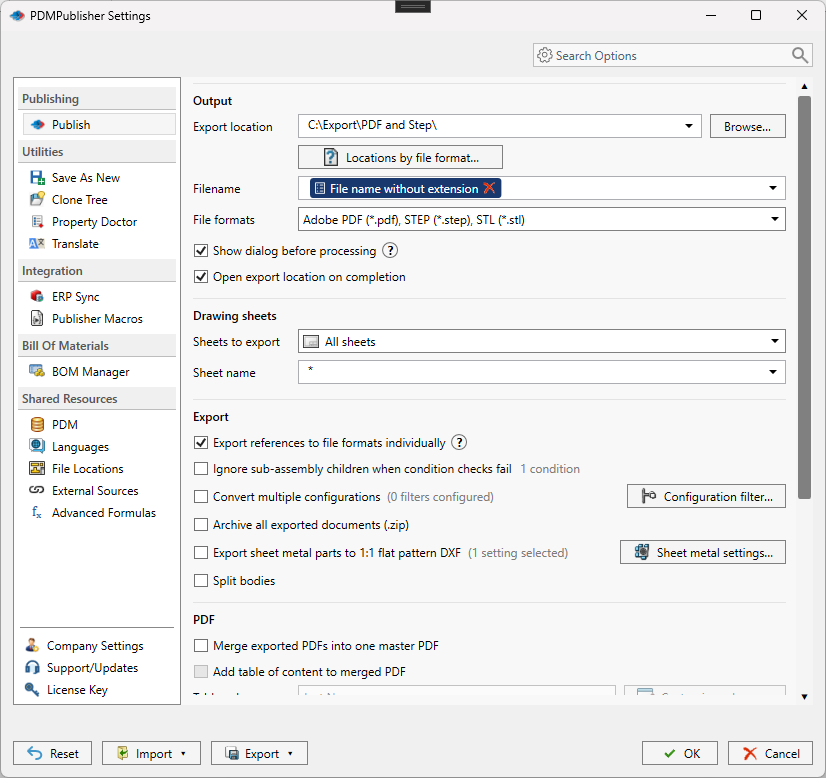
On the Options page, start with the output section. Use the >... menu to insert placeholders; don’t type them.
- In Export Location, enter
(VaultRootFolder)\Released Packages\($ProjectNumber)\(TopAssemblyName). No trailing backslash. PickProjectNumberfrom the PDM Variables submenu so the$prefix is right. - In Filename, enter
(FileNameWithoutExtension)-Rev(Revision). The extension is added by the format. - In File Formats, select
Adobe PDF (pdf)andSTEP (step). Don’t select DXF; the flat-pattern option below has its own switch. - Keep Export affected document on so the top assembly itself gets a STEP and a drawing PDF.
- Turn on Export references to file formats individually. This is what makes the task walk the assembly.
- In Template, select the BOM layout with the name, configuration and quantity columns.
- In Use this version of SOLIDWORKS, pick the year installed on the task host, or
Latest.
When PDF is selected for a part or assembly, PDMPublisher looks for a drawing with the same name in the same folder and exports that drawing. If your drawings live in a separate Drawings folder, turn on Use search to locate drawings. Drawing and model names must match.
Add the flat patterns, the merged PDF and the ZIP
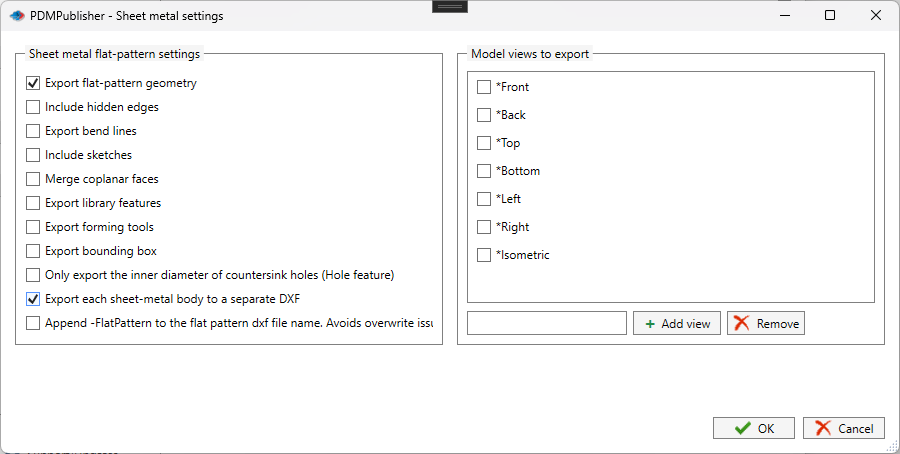
- Turn on Export sheet metal parts to 1:1 flat pattern DXF.
- Open Flat Pattern Settings (the add-in calls the same dialog Sheet metal settings). Keep Export flat-pattern geometry, add Export bend lines, and turn on Append -FlatPattern to the flat pattern DXF file name. Leave every model view cleared, or the export switches from a flat pattern to a projected view.
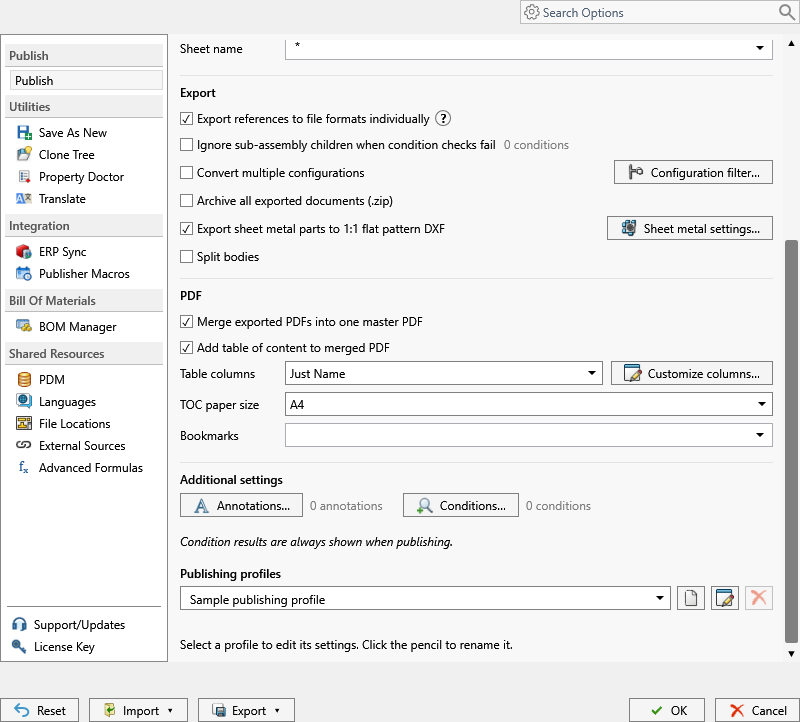
- Turn on Merge exported PDFs into one master PDF. It needs PDF in the formats and references exported individually, which you’ve set.
- Turn on Add table of content to merged PDF and set Table columns to
Name & Quantity. - In PDF bookmarks, enter
(FileNameWithoutExtension) Rev (Revision). - Turn on Archive all exported documents (.zip).
- Turn on Get latest revision only. The task then publishes the version tied to the newest revision and the references saved with it, not work-in-progress versions checked in later.
- Turn on Vault Activity Logs and set Log Folder (Vault Only) to
(VaultRootFolder)\Logs\PDMPublisher.
Settings used
| Setting | Value | Why |
|---|---|---|
| Export Location | (VaultRootFolder)\Released Packages\($ProjectNumber)\(TopAssemblyName) | One folder per released assembly, inside the vault |
| Filename | (FileNameWithoutExtension)-Rev(Revision) | Revision in the name so B doesn’t overwrite A |
| File Formats | Adobe PDF (pdf)STEP (step) | Drawing PDFs and 3D exchange files |
| Export affected document | On | Top assembly is part of the package |
| Export references to file formats individually | On | Walks every part and sub-assembly |
| Template | BOM layout with <Name><Configuration><RefCount> | Required to find references and quantities |
| Export sheet metal parts to 1:1 flat pattern DXF | On; geometry, bend lines, -FlatPattern suffix | Laser-ready DXF per sheet metal part |
| Merge exported PDFs into one master PDF | On | One drawing set for review |
| Add table of content to merged PDF | On, Name & Quantity | Contents page with quantities |
| PDF bookmarks | (FileNameWithoutExtension) Rev (Revision) | Jump to a drawing by name |
| Archive all exported documents (.zip) | On | One file to send |
| Get latest revision only | On | Publishes the revised version, not later WIP |
| Use this version of SOLIDWORKS | Installed year on the task host | Matches the task host install |
| Vault Activity Logs / Log Folder | On; (VaultRootFolder)\Logs\PDMPublisher | Needed for the Task Details tab |
Run it and check the result
Before you wire it to the transition, test from the right-click menu. In File Explorer, right-click Full_Grill_Assembly.SLDASM, open Tasks and pick Release package. If the Tasks menu is missing, see Task host setup and monitoring.
When the task finishes, open the task in the PDM task list and look at the Task Details tab. It lists each successful file with Timestamp, Destination File, Ver, Original File and Found In. It reads the task log, so logging must be on and you need read access to the log folder. Files saved outside the vault aren’t listed there.
Use Open Log File to read the full log. With Get latest revision only on, the log records the revision name and PDM version it picked for each file. The log also names any placeholder whose value contained a character Windows doesn’t allow in a filename.
Check the folder itself. Exported files that already existed in PDM get a new version, and the check-in comment says PDMPublisher added or checked in the file.
Variations
- Send the DXFs straight to the laser share. Use Customize Location (Locations by file format in the add-in, Premium; same feature) to give the DXF format its own folder, such as
\\server\laser\DXF. PDF and STEP keep the main location. - Publish every configuration of a configured part. Turn on Convert multiple configurations and add
(ConfigurationName)to the filename, or outputs from different configurations overwrite each other. - Skip purchased parts. Add a condition on the Conditions page so bought-out items don’t get a STEP or DXF. See Publish conditions in practice.
- Stamp the PDFs. Add the revision and state on each sheet with the Annotations page. See Stamp revision and state on every PDF.
Where it goes wrong
| Symptom | Cause | Fix |
|---|---|---|
| No files appear | Export location is the vault root or a folder where the task user can’t add files | Point it at a folder where the user can create, check out, check in and overwrite files |
| Some parts missing from the package | Task host has no local copy of those references | Get latest on the assembly and references on the task host |
| Wrong or missing references | Template not selected, or the layout lacks name, configuration or quantity columns | Pick a layout with <Name><Configuration> and <RefCount> |
| A file fails instead of publishing | Get latest revision only is on and the file has no recorded revision | Assign a revision, or turn the option off for that task |
| Part gets a STEP but no PDF | No same-name drawing in the part’s folder | Turn on Use search to locate drawings, or keep drawings beside models |
| Task Details tab is empty | Logging off, no read access to the log, or files saved outside the vault | Turn on Vault Activity Logs and check log folder permissions |
| Log file won’t check in | Task user lacks folder permission, or txt is in the auto-add setting | Fix permissions; remove txt from auto-add |
| Font error opening the merged PDF | PDF reader is missing Helvetica-Bold | Install the font in the reader |
Documentation and related features
- Publish settings in the SOLIDWORKS add-in
- Set up your first PDMPublisher task
- Run as a SOLIDWORKS PDM task
- Merge multiple drawings into one PDF
Frequently asked questions
Can a SOLIDWORKS PDM task export PDF, STEP and DXF in one run?
Yes. Select PDF and STEP in File Formats and turn on the flat pattern DXF option. One task produces all three for the assembly and its references.
Do I need to select DXF in File Formats for flat patterns?
No. Export sheet metal parts to 1:1 flat pattern DXF has its own switch. Selecting DXF in File Formats only converts drawings to DXF.
How do I publish the released revision instead of the latest checked-in version?
Turn on Get latest revision only. The task uses the version tied to the newest recorded revision and the references saved with it. It overrides Work with latest version.
Why does the merged PDF need Export references individually?
The merge works on the individual PDFs PDMPublisher creates for the assembly’s references. Without that option there’s nothing to merge.