
A free SOLIDWORKS batch export tool is what most engineers search for after exporting the same assembly’s drawings to PDF by hand for the third time. PDMPublisher for SOLIDWORKS ships with a Community Edition that runs without a license key. It publishes the open part, assembly or drawing, plus its references, to PDF, DXF and STEP in one job. Here’s what it includes, where it stops, how to install it, a five-step first export, and the other free options.
What you get in the free SOLIDWORKS batch export tool
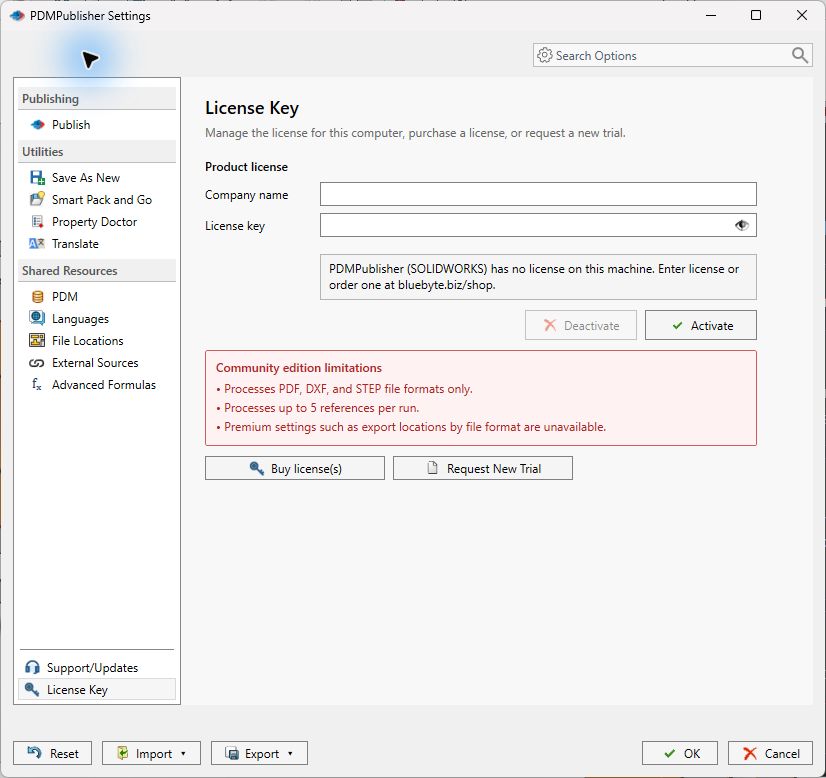
The add-in runs as the Community Edition whenever no Premium license is active. Here are the limits, straight from the docs.
The publishing workflow is complete. You get named profiles, export location and filename from placeholders and properties, sheet selection by name pattern, per-reference export for assemblies, and multiple configurations with a filter. You also get PDF merging with table of contents and bookmarks, annotations and watermarks, conditions, ZIP archive, flat pattern DXF, and the Publishing results log.
| Feature | Community Edition (free) | Notes |
|---|---|---|
| License | No paid Premium license required | Automatic when no key is active |
| Publish formats | PDF, DXF and STEP only | Premium adds all supported formats |
| References per publishing run | Up to 5 | Per run; a 12-part assembly needs three runs or Premium |
| Export locations by file format | Not available | One export location for all formats |
| Save As New | Filename settings saved; destination chosen per save | Premium saves destinations too |
| Clone Tree | Up to 5 rows per run | |
| Property Doctor | Up to 5 rows at a time | |
| BOM Manager | Up to 10 rows | |
| ERP Sync | Up to 10 rows | |
| Profiles, settings transfer, annotations, conditions, logs | Available | |
| PDM-backed values and locations | With a local vault view and permissions | Same in both editions |
From the docs: “Community limits apply to each operation; they do not expire after a fixed number of uses.” No run counter, no end date.
Install PDMPublisher for SOLIDWORKS
It’s an MSI installer. Close SOLIDWORKS first, and use a Windows account that can install applications.
- Download the installer from bluebyte.biz to the local computer, not an email attachment, ZIP or network preview.
- Unblock it: right-click the
.msi, select Properties, and on the General tab tick Unblock under Security, then Apply and OK. If Unblock isn’t shown, carry on. - With SOLIDWORKS closed, double-click the MSI, approve the administrator prompt, follow the wizard, select Install, then Finish.
- Start SOLIDWORKS and open Tools > Add-Ins. Under Partner Solution Add-Ins, find PDMPublisher (SOLIDWORKS), tick both Active Add-ins and Start Up, then OK.
- Open the PDMPublisher CommandManager tab. If it’s hidden, right-click the tab area and show PDMPublisher.
If PDMPublisher doesn’t appear under Tools > Add-Ins, close SOLIDWORKS and run the installer again. To update, close SOLIDWORKS, download the current MSI, unblock it and rerun the wizard.
Your first batch export in five steps
This publishes an assembly and its drawings to PDF and STEP with the supplied PDF And Step profile. Save the assembly and resolve its references first.
- Create a profile. Open PDMPublisher > Settings > Publish, select New > New From, choose
PDF And Step, name it (saySupplier package) and save. The supplied profiles (DXF,PDF And Step,STEP) are editable starting points. - Set the destination and name. In Export location, enter a folder or a pattern such as
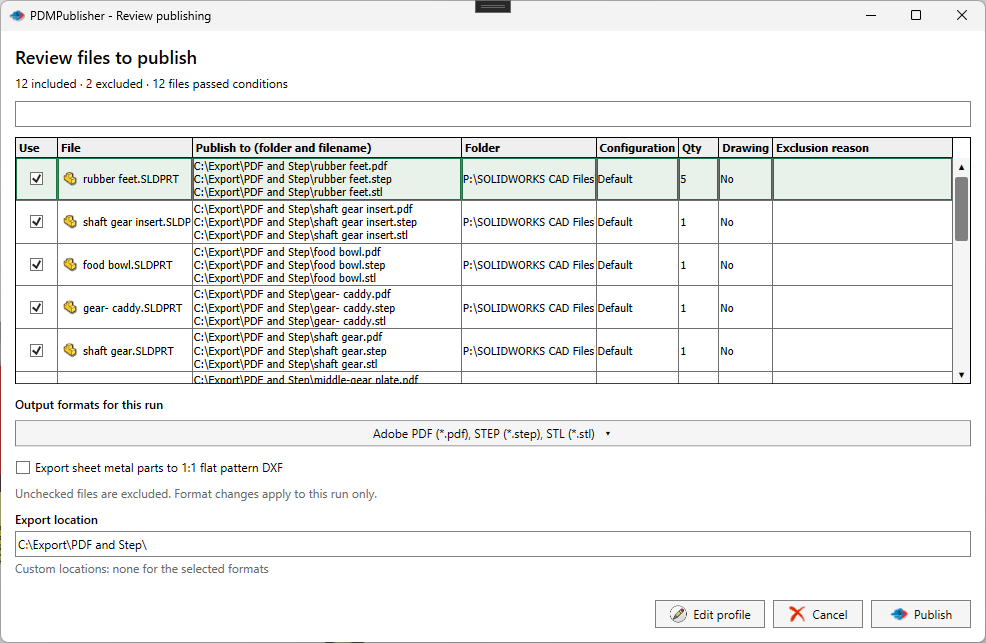
(TopAssemblyFolder)\Exports, no trailing backslash. In Filename, combine text and placeholders; if you export configurations, include(ConfigurationName)so outputs don’t overwrite. - Choose what to process. Tick Export references to file formats individually so the components are published too; the review dialog lets you clear files to stay under 5 references. For multi-sheet drawings, set Sheets to export to
Sheets matching namewith a pattern such asSheet*, or leaveAll sheets. - Publish. Select the arrow beside Publish and pick Profile: Supplier package. With Show dialog before processing on, PDMPublisher lists the files and output paths; confirm to start. For a part or assembly with PDF selected, it exports the same-name drawing from the same folder.
- Check the result. Publishing results groups outputs by source file and configuration (Completed, Warning, Skipped, Error, Cancelled). Use Open folder or Copy path, and PDMPublisher > Logs for the detail.
Want DXF flat patterns too? Export sheet metal parts to 1:1 flat pattern DXF has its own settings (geometry, bend lines, bounding box, one DXF per body) and doesn’t need DXF in File formats.
What the free edition doesn’t do
- No DWG, eDrawings, IGES, Parasolid, 3D PDF or the other formats in the selector; those are Premium.
- At most 5 references per run, so large assemblies need several runs or Premium.
- It can’t send PDFs to one folder and STEP to another; locations by file format are Premium.
- It publishes the document open in SOLIDWORKS. No folder scans, no timer; unattended vault runs belong to the separate PDMPublisher for PDM Professional task.
- It writes files; it doesn’t change SOLIDWORKS or PDM permissions. Publishing into a vault folder still needs your PDM rights.
Other free ways to batch export from SOLIDWORKS
PDMPublisher isn’t the only option, and for some jobs not the best one. Each is documented by its vendor.
- SOLIDWORKS Task Scheduler exports folders of files on a schedule to PDF, DXF, STEP and more. The SOLIDWORKS blog says scheduling anything other than version conversion needs a Professional or Premium license.
- CodeStack’s multi-format export macro is free VBA that exports the active document to several formats using templates such as
<_FileName_>and<_ConfName_>, optionally through all configurations or sheets: codestack.net. - CAD+ Toolset Community Edition by Xarial includes the Batch+ macro runner free, commercial use included. It’s for organizations under AUD 1,000,000 annual revenue and fewer than 10 employees, re-verified annually: eligibility page.
Third-party details as of September 2026; check the vendors’ sites for current terms.
Community vs Premium
Premium is a paid license activated per computer under PDMPublisher > License Key. It removes the Community limits; it doesn’t change SOLIDWORKS or PDM permissions.
| Feature | Community Edition | Premium Edition |
|---|---|---|
| License | No paid Premium license required | Activated paid Premium license |
| Publish formats | PDF, DXF and STEP only | All supported publish formats |
| References per publishing run | Up to 5 | No limit |
| Export locations by file format | Not available | Available |
| Save As New | Filename settings saved; destination chosen per save | Reusable filename and destination settings |
| Clone Tree | Up to 5 rows per run | No row limit |
| Property Doctor | Up to 5 rows at a time | No row limit |
| BOM Manager | Up to 10 rows | No row limit |
| ERP Sync | Up to 10 rows | No row limit |
| Profiles, settings transfer, annotations, conditions, logs | Available | Available |
| PDM-backed values and locations | With a local vault view and permissions | With a local vault view and permissions |
To activate, open PDMPublisher > License Key, enter the company name exactly as supplied and the license key, and select Activate. Deactivate before moving the license to another computer. Pricing is at pdmpublisher.com/solidworks-desktop.
Tips for a clean first run
- Save and resolve references before publishing, or the review dialog and log will show skipped items.
- Add
(ConfigurationName)to the filename before turning on Convert multiple configurations, and exclude*Flat*configurations when writing STEP. - A sheet pattern that matches nothing exports all sheets and logs a fallback. Check PDMPublisher > Logs if every sheet came out.
- Use Export > Export to File… in the profile controls to keep a
.pdmpublisherprofilebackup, or share a profile with a colleague via a six-digit PIN. - Cancelling a job doesn’t roll back files already written. Check the output folder before rerunning.
- For support, save the log with Save… and email it with the source filename to support@bluebytesystemsinc.zohodesk.com.
Availability
Available in PDMPublisher for SOLIDWORKS, the add-in that runs inside SOLIDWORKS. Not part of the PDM Professional task. The Community Edition is the free tier of PDMPublisher for SOLIDWORKS, the add-in. PDMPublisher for PDM Professional is a separate licensed task with a 7-day trial.
Documentation and related features
- Community vs Premium comparison
- PDM task vs SOLIDWORKS add-in
- SOLIDWORKS drawing documents
- SOLIDWORKS assemblies
- Sheet metal publishing
- Publishing profiles and company settings
- Batch SLDDRW to PDF
- SLDPRT to STEP
- SLDDRW to PDF
- PDMPublisher for SOLIDWORKS
Frequently asked questions
Is PDMPublisher really free?
The add-in runs as the Community Edition without a paid license: PDF, DXF and STEP, up to 5 references per run. Row limits apply to Clone Tree, Property Doctor, BOM Manager and ERP Sync. Premium removes those limits. The PDM Professional task is a separate paid product.
Does the free edition expire?
No time limit is documented. Community limits apply per operation, don’t expire after a fixed number of uses, and the add-in runs as Community whenever no Premium license is active.
Can I use the free edition commercially?
The docs don’t address it. The Blue Byte Systems EULA grants a license for personal or organizational use under its terms; read it at pdmpublisher.com/help/src/eula.html before deploying in a company.
Can the free tool export a whole folder of SOLIDWORKS files?
No. The add-in publishes the document open in SOLIDWORKS and its references, up to 5 per run in Community. Folder or scheduled runs are for SOLIDWORKS Task Scheduler or the separate PDM Professional task.
Is there a trial of the Premium add-in?
The License Key page has a Request New Trial button. The docs note the 7-day trial on the help site is for the PDM Professional task, so check what the trial page offers for the add-in when you request it.