
To batch convert SOLIDWORKS files to STEP you can use SOLIDWORKS Task Scheduler, a VBA macro, the SOLIDWORKS PDM Professional Convert task, a third-party add-in, or PDMPublisher. The export itself is rarely the hard part. Configurations, assembly references, multi-body parts and naming are. Here’s each option with steps and limits, with or without PDMPublisher.
Why batch STEP export is harder than it looks
A STEP file is a snapshot of one configuration of one document. That creates most of the work. A bracket with six size configurations needs six STEP files with six names. A supplier assembly needs the top-level STEP plus, often, one per purchased component. A multi-body weldment may need one per body. Sheet metal parts carry a flat-pattern configuration nobody wants as a solid.
By hand that means activating each configuration, File > Save As > STEP, typing a name that encodes it, and repeating. Get one name wrong and a configuration silently overwrites another. Every method below automates the export. What differs is how many naming and reference problems it solves, and whether it runs unattended.
Method 1: SOLIDWORKS Task Scheduler Export Files
Task Scheduler’s Export Files task converts files or folders to one format. The SOLIDWORKS Tech Blog lists DXF, DWG, IGES, PDF, STEP AP203, STEP AP214 and JPEG, and notes that scheduling anything beyond version conversion needs Professional or Premium.
- Start SOLIDWORKS Task Scheduler and choose Export Files.
- Enter a title and select STEP AP203 or AP214.
- Use Add File or Add Folder (subfolders optional) to queue parts and assemblies.
- Choose output to the original folder or a custom one.
- Pick Once, Daily, Weekly or Monthly and a start time. If the PC is off, it runs at next start-up.
- Use Options for STEP settings, Advanced for working folder, timeout and background mode, then Finish.
Limits: no per-configuration option is documented, so expect one STEP per document in the saved configuration, named after the source file. No naming pattern, no PDM awareness, and SOLIDWORKS is busy while it runs. Fine for a one-off folder; weak for configuration-heavy libraries.
Method 2: a VBA macro
CodeStack’s Export to multiple formats macro is the usual starting point. It exports the active document to every format in its OUT_NAME_TEMPLATES array; the extension picks the format (<PartNo>.step, <PartNo>.x_t) and property tokens build the name. With ALL_CONFIGS = True it exports every configuration in turn.
- Create a macro with Tools > Macro > New and paste the CodeStack code.
- Set
OUT_NAME_TEMPLATES = Array("<PartNo>-<Configuration>.step")so each configuration gets its own name. - Set
ALL_CONFIGS = True. - Wrap it in a loop that opens each file with
OpenDoc6, exports and closes it. - Run it inside SOLIDWORKS and leave the session alone.
Pros: free and fully adjustable, STEP options included. Cons: no logging or crash recovery unless you write them, no flat-pattern skip list unless you code it, no PDM check-in. Walking assembly references is more code.
Method 3: eDrawings (why it isn’t a STEP route)
eDrawings gets suggested for batch publishing because it needs no SOLIDWORKS seat, but it doesn’t do STEP. Xarial’s eDrawings-based eXport+ outputs eDrawings files, STL, images, PDF and HTML, not STEP, and we found no eDrawings documentation for STEP. Keep it for viewing and PDF or image batches. STEP needs SOLIDWORKS, which every remaining method uses.
Method 4: the SOLIDWORKS PDM Convert task
The bundled Convert task can produce STEP on PDM Professional. GoEngineer’s guide is clear that PDM Standard does drawings to PDF only; Professional adds stp, igs, x_t and dwg. If the task isn’t in the vault, import convert_gb.cex from the Default Data folder.
- In the Administration tool expand the vault and Tasks; import
convert_gb.cexif needed. - Set the run-as account on Add-in and the computers on Execution Method. Permit the task in Task Host Configuration on each.
- On Conversion Settings choose STEP and the version of referenced files to use.
- On Output File Details set path and filename. On File Card map variables to the STEP file’s data card.
- Attach the task to a workflow transition or run it from the right-click Tasks menu.
Limits: no STEP on PDM Standard. The articles we checked don’t say how the task treats multiple configurations, multi-body parts or per-component STEP; check the SOLIDWORKS PDM help for the Advanced Conversion Options (STEP) dialog. Javelin’s Convert task articles cover output-name variables and customizing the task for unsupported file types.
Method 5: third-party add-ins
CAD+ Batch+ (Xarial) runs macros against a batch of models, restarts SOLIDWORKS after a crash or hang, and works with Windows Task Scheduler. Its PDM Professional integration runs as a PDM task with automatic check-out and check-in and multi-configuration processing. CAD Booster Drew is a drawing-automation add-in with one-click batch export to PDF, DXF and STEP; paid, 14-day trial.
Pick an add-in when you want a supported GUI and crash recovery around your own macros, or when drawing automation is the bigger need. Pricing is on the vendors’ sites.
Method comparison
| Method | Cost | Handles configurations/sheets? | Runs unattended? | Best for |
|---|---|---|---|---|
| SOLIDWORKS Task Scheduler | Included with Professional/Premium | One STEP per document; no configuration loop documented | Scheduled; needs a SOLIDWORKS seat | One-off folder conversions |
| VBA macro | Free | Yes with ALL_CONFIGS; you code the exclusions | Interactive session, no logging | API-comfortable engineers |
| eDrawings / eXport+ | Free / commercial | Not for STEP | n/a | PDF and image batches only |
| PDM Convert task | Included with PDM Professional | STEP on Professional; configurations per SOLIDWORKS help | Yes, workflow or right-click | Basic STEP on release |
| CAD+ Batch+ / Drew | Commercial | Batch+: multi-configuration; Drew: batch STEP export | Batch+: Windows Task Scheduler or PDM task | Supported GUI tooling |
| PDMPublisher | Add-in: free Community (PDF/DXF/STEP, 5 refs) or Premium; task: per vault, 7-day trial | All configurations with include/exclude filter; references; split bodies | Task: workflow, right-click or schedule | Configuration-heavy parts and supplier packages |
Doing it with PDMPublisher
STEP support is the same in the add-in and the PDM task. Limits first: the add-in’s Community Edition is free and includes STEP, up to 5 references per run; Premium lifts that and adds per-format export locations. The task is licensed per vault with a 7-day trial and needs a task host with SOLIDWORKS.
What it solves for STEP: multiple configurations with an include/exclude wildcard filter, one STEP per assembly component, split bodies for multi-body parts, and (ConfigurationName) in the filename so nothing overwrites. The docs’ own tip: enable multiple configurations, put ConfigurationName in the filename, and exclude flat patterns.
Batch convert SOLIDWORKS files to STEP in the add-in
- Open the part or assembly, save it and resolve references.
- Go to PDMPublisher > Settings > Publish and create a profile with New > New….
- Set Export location, such as
(TopAssemblyFolder)\STEP\(Revision), no trailing backslash. - Set Filename to include the configuration, for example
(FileName)-(ConfigurationName). - Under File formats select STEP (step). Add Parasolid or IGES in the same job if needed (Premium beyond PDF, DXF and STEP).
- Tick Convert multiple configurations and open the configuration filter:
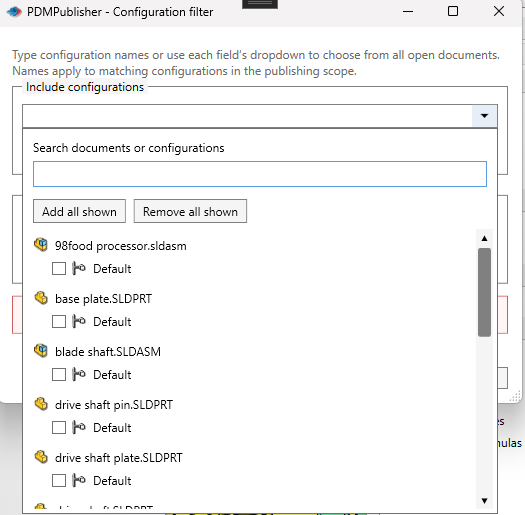
*orPROD*under Include Configurations,*Flat*under Exclude Configurations. The dropdown beside each field lists configurations from every open document. - For an assembly, tick Export references to file formats individually. Tick Split bodies if multi-body parts need one STEP per body (the body name is appended to the filename).
- Optionally tick Archive all exported documents (.zip) for one supplier package, then OK.
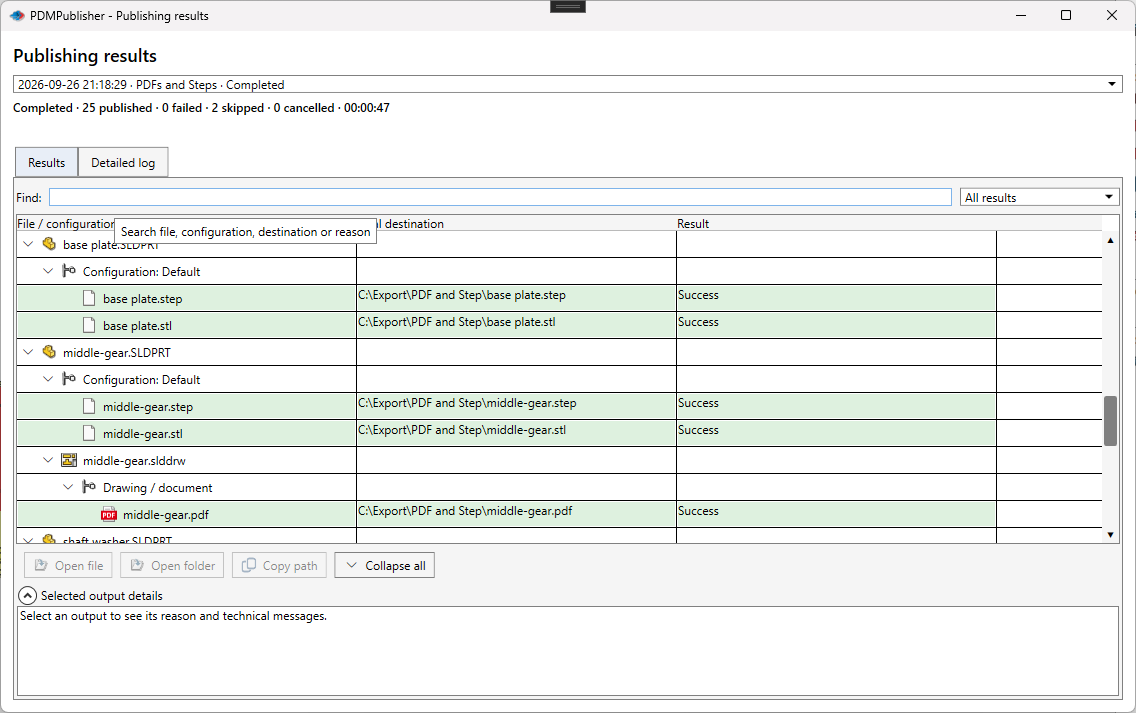
- Run PDMPublisher > Publish and review Publishing results.
With Show conditions output dialog on, the add-in lists the references that passed before exporting; clear any file to skip it this run. Conditions can also drop purchased parts or specific states.
Batch convert to STEP with the PDM Professional task
- Add PDMPublisher to the vault (PDMDeploy or
.ceximport) and activate the license. - Right-click Tasks > New Task…, choose PDMPublisher as the add-in, tick the task computers, and permit it in Task Host Configuration on each.
- On Options: set Use this version of SOLIDWORKS to an installed version (or
Latest), Export Location such as(VaultRootFolder)\STEP\(State), and Filename with(ConfigurationName). - Select STEP under File Formats.
- Tick Convert multiple configurations and set the filter; the task starts from the launched or selected configuration.
- For assemblies, pick a BOM Template with
<Name>,<Configuration>and<RefCount>columns, then tick Export References to File Formats Individually. Without it, reference exports may be missing or wrong. - Tick Split Bodies if needed, and vault activity logs so Task Details lists the checked-in files.
- Launch from a workflow transition, the right-click Tasks menu, or Scheduling with Scheduled Items. Ask User to Specify Files on Task Launch lets users pick files, configurations and formats per run, CSV included.
The task user needs add, check-out and check-in rights in the export folder. If a STEP file already exists in the vault, the task creates a new version, not a duplicate.
Tips and troubleshooting
- Overwritten STEP files almost always mean
(ConfigurationName)is missing from the filename while multiple configurations are on. - Unwanted flat-pattern STEP files: add
*Flat*or*Flat-Pattern*to Exclude Configurations. - Split bodies is for solid bodies. Sheet-metal flat patterns use the 1:1 flat pattern DXF option with Export each sheet-metal body to a separate DXF.
- Missing component STEP files from the task: check the BOM Template columns and that the assembly and children are cached on the host (Get Latest).
- Format list shorter than expected: PDMPublisher hides formats invalid for the source type, and some depend on the SOLIDWORKS version.
- Different folders per format: use Customize Location (extension-specific locations). Premium in the add-in, standard in the task.
- Macros and Task Scheduler: keep SOLIDWORKS idle, and test on a small folder before a 2,000-file library.
Availability
Available in PDMPublisher for SOLIDWORKS (the add-in) and PDMPublisher for PDM Professional (the task). STEP settings are shared by PDMPublisher for SOLIDWORKS (publishes the open part or assembly) and PDMPublisher for PDM Professional (runs on vault files from a task, transition or schedule). STEP is in the add-in’s free Community Edition.
Documentation and related features
- Convert Multiple Configurations
- Export References Individually
- SOLIDWORKS part documents
- SOLIDWORKS assemblies
- Conditional assembly processing
- Extension-specific export locations
- SLDPRT to STEP
- SLDASM to STEP
- PDMPublisher for SOLIDWORKS
- PDMPublisher for PDM Professional
Frequently asked questions
How do I export all configurations of a SOLIDWORKS part to STEP at once?
A macro with a configuration loop (CodeStack’s ALL_CONFIGS = True), or PDMPublisher with Convert multiple configurations on and (ConfigurationName) in the filename. Task Scheduler documents no per-configuration option.
Can SOLIDWORKS Task Scheduler batch export to STEP?
Yes. Export Files supports STEP AP203 and AP214 for files or folders on a schedule, given a Professional or Premium license. Output is named after the source file; no naming pattern.
Does the SOLIDWORKS PDM Convert task export STEP?
On PDM Professional, yes: GoEngineer lists stp. PDM Standard only does drawings to PDF. See the SOLIDWORKS PDM help for configuration handling.
How do I get one STEP file per component of an assembly?
Publish the assembly in PDMPublisher with STEP selected and Export references to file formats individually on. The PDM task also needs a BOM Template with name, configuration and quantity columns. Conditions can exclude purchased or hardware parts.
Is batch STEP export free in PDMPublisher?
The add-in’s Community Edition includes STEP, PDF and DXF at no cost, up to 5 references per run. Premium removes the limit; the PDM task is licensed per vault with a 7-day trial.