
Merging multiple SOLIDWORKS drawings into one PDF means two different things, and PDMPublisher does both. A multi-sheet drawing becomes one PDF with all its sheets. An assembly’s drawing set becomes one master PDF in BOM order with a contents page and bookmarks. Both work from the add-in or as a SOLIDWORKS PDM Professional task.
What you get
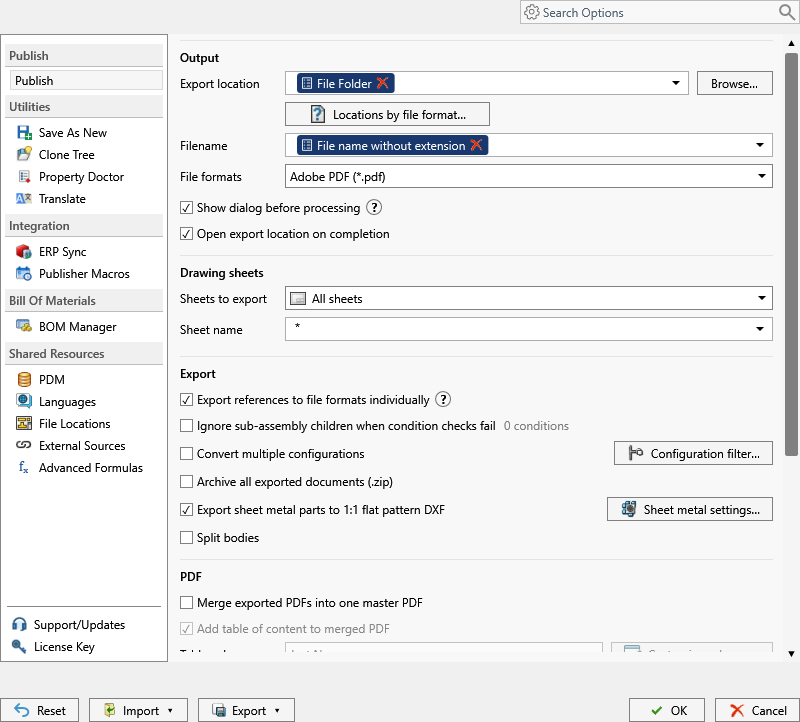
A multi-sheet drawing as one PDF: with Sheets to export set to All sheets, one .pdf holds every sheet of the SLDDRW. Sheets matching name with a Sheet name pattern keeps internal sheets out.
An assembly’s drawings as one master PDF: tick Adobe PDF, Export references to file formats individually and Merge exported PDFs into one master PDF. PDMPublisher exports the same-name drawing of the assembly and every referenced component and combines them into one master .pdf. Add table of content to merged PDF and PDF Bookmarks add navigation. This is assembly processing: it doesn’t combine arbitrary drawings picked by hand, and the individual PDFs are written too.
The manual way, and why it doesn’t scale
Save each drawing as PDF, open a PDF editor, combine, reorder by BOM, save. For a multi-sheet drawing, remember to untick the sheets that must not leave the building.
It goes stale at the first revision, and the order depends on how carefully someone dragged the pages.
Merge multiple SOLIDWORKS drawings into one PDF with the add-in
- Open the multi-sheet drawing, or, for a merged set, the top-level assembly with every reference resolved and each component’s drawing beside it with the same filename.
- On the PDMPublisher tab, select Settings, then Publish.
- Set Export location, such as
(TopAssemblyFolder)\Exports\(Revision), and the Filename pattern, such as(FileNameWithoutExtension)-(Revision);.pdfis added for you. - Under File formats, tick Adobe PDF (
pdf). - Under Sheets to export, keep All sheets, or pick Sheets matching name with a wildcard such as
Sheet*or(ConfigurationName)*to leave internal sheets out. - For the assembly drawing set, tick Export references to file formats individually, then Merge exported PDFs into one master PDF.
- Optionally tick Add table of content to merged PDF, choose Table Columns and set the PDF Bookmarks pattern, such as
(FileNameWithoutExtension) - (Revision). - Select
PDMPublisher > Publish, confirm the review dialog, and check Publishing results afterwards.
PDF is a Community Edition format, but Community is limited to 5 references per run. A single multi-sheet drawing is within the limit; a merged set of a real assembly needs Premium.
Automate it as a PDM task
PDMPublisher for PDM Professional runs the same engine as a task, so the drawing becomes one PDF on a state change, not when somebody remembers.
- In PDM Administration, right-click Tasks, select New Task, choose PDMPublisher and name it. Tick the task hosts under Execution Method.
- On the Options page, set Export Location (
(VaultRootFolder)\Exports\Merged PDFs, no trailing backslash) and Filename; PDM variables such as($PartNumber)are in the>...menu. - Under File Formats, tick Adobe PDF. Keep Export affected document on.
- Set Sheets to export and the Sheet name pattern as in the add-in.
- For the merged set, set Template to a PDM BOM layout with name, configuration and quantity columns. Enable Export references to file formats individually and Merge exported PDFs into one master PDF, plus the table of content and PDF bookmarks if you want them. Launch the task on the assembly.
- Enable Use PDM search to locate drawings if drawings aren’t always beside their models.
- Pick Use this version of SOLIDWORKS (a year on the task host, or Latest). For release workflows, enable Get latest revision only so the version tied to the newest revision is exported.
- Attach the task to a workflow transition, leave it in the right-click menu, or run it from Scheduled Items.
Settings that matter for a merged PDF
| Setting | What it does | Tip |
|---|---|---|
| Sheets to export | All sheets, or Sheets matching name. | A one-sheet drawing always exports its only sheet. |
| Sheet name pattern | * any text, ? one character; (ConfigurationName) evaluated first. | No match on a multi-sheet drawing exports every sheet and logs the fallback (2026.08.09+). |
| File formats | Tick Adobe PDF (pdf); invalid formats are dropped. | Several formats per job. |
| Export references to file formats individually | On an assembly, writes each referenced part and sub-assembly (and with PDF, its same-name drawing) as its own file. | Task: needs a BOM Template with name, configuration and quantity columns. |
| Merge exported PDFs into one master PDF | Combines the individual PDFs into one master PDF. | Assembly processing only; needs references on. |
| Add table of content to merged PDF | Adds a contents page to the master PDF. | Merged PDF only. |
Naming and folders
Placeholders resolve when the job starts, so every PDF is named and filed the same way:
(FileNameWithoutExtension)-(Revision):Frame-B.pdfwith all its sheets in(TopAssemblyFolder)\Exports\PDF.(TopAssemblyName)-(Revision)-SETin the task: the master PDF named after the assembly that launched it.(VaultRootFolder)\Review\($ProjectNumber)\(State): master PDFs filed by project and workflow state.
Customize Location (Premium in the add-in, standard in the task) gives the
Tips and troubleshooting
- Merge did nothing on a drawing or part? It runs on assembly processing only: an assembly as the source, PDF ticked, references on.
- Multi-sheet drawing exported every sheet despite a pattern? A pattern that matches nothing falls back to all sheets and logs it. Check the pattern and the evaluated
(ConfigurationName). - A drawing missing from the master PDF? No same-name drawing beside the model. In the task, enable Use PDM search to locate drawings.
- The PDF reader reports Cannot find or create the font ‘Helvetica-Bold’? That’s the reader’s font set; install the font.
- Missing or wrong reference files from the task? The BOM Template needs name, configuration and quantity columns. Suppressed, virtual, envelope and excluded-from-BOM components are ignored.
Availability
Available in PDMPublisher for SOLIDWORKS (the add-in) and PDMPublisher for PDM Professional (the task).
Documentation and related features
- Run a Publish Job (PDMPublisher for SOLIDWORKS)
- Merge Exported PDFs into One Master PDF
- Merge multiple drawings into one PDF
- PDF table of content
- PDF bookmarks
- SOLIDWORKS drawing documents
- Run as a SOLIDWORKS PDM task
- Merge all assembly drawings into one PDF
- SOLIDWORKS drawing to PDF with bookmarks
- Export each drawing sheet as its own PDF
Frequently asked questions
How do I merge several SOLIDWORKS drawings into one PDF?
Open the assembly they belong to, tick Adobe PDF, enable Export references to file formats individually and Merge exported PDFs into one master PDF, and Publish. Every component’s drawing is exported and merged.
Does a multi-sheet drawing become one PDF or several?
One PDF with all sheets when Sheets to export is All sheets; only the matching sheets with Sheets matching name.
Can I merge drawings that are not in the same assembly?
The merge follows assembly references. Drawings the assembly doesn’t reference aren’t in the master PDF; export them separately or from their own assembly.
Can the merged PDF have a table of contents and bookmarks?
Yes. Enable Add table of content to merged PDF, choose Table Columns, and set a PDF Bookmarks pattern.