
Merging all assembly drawings into one PDF gives reviewers the package they actually open: one document, a contents page, a bookmark per drawing, every part in BOM order. PDMPublisher builds it from the SLDASM: it exports every referenced component’s drawing to PDF, then merges them into one master PDF with a generated table of contents and bookmarks. Run it from the add-in or as a SOLIDWORKS PDM Professional task.
What you get
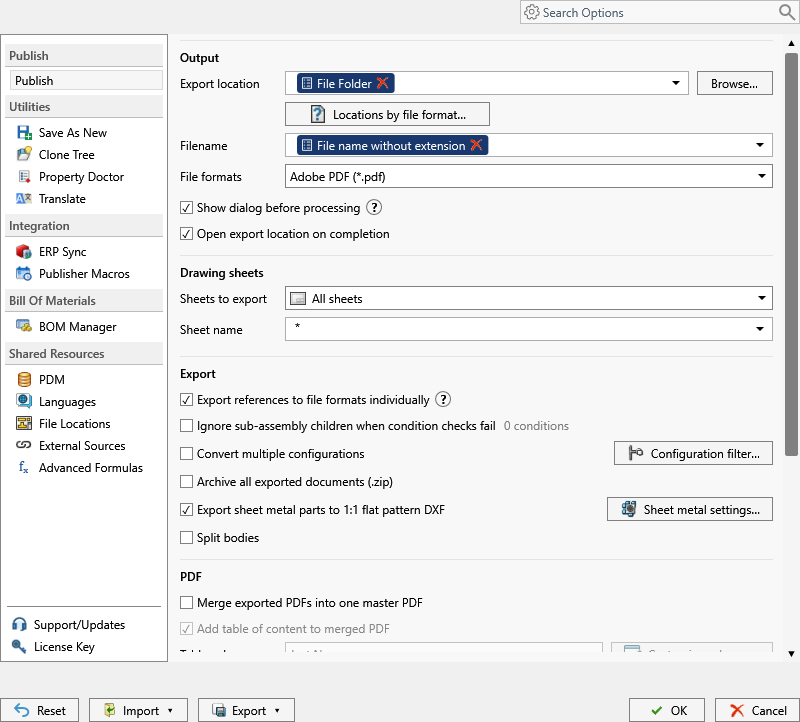
One master .pdf: the assembly drawing, then every referenced part and sub-assembly drawing. Add table of content to merged PDF puts a contents page at the front, with Table Columns set to Just Name, Name & Quantity or Custom Columns. PDF Bookmarks adds a bookmark per drawing from a placeholder pattern, so a reviewer jumps straight to Bracket-A.
The merge works on the individual PDFs made from the references. So you need three things: Adobe PDF (pdf) ticked under File formats, Export references to file formats individually on, and an assembly as the source. Contents page and bookmarks go into the merged PDF only.
The manual way, and why it doesn’t scale
Open every component drawing and File > Save As PDF. Then combine the files in a PDF editor, drag them into BOM order, type a contents page and add bookmarks one by one.
It works once. After the next ECO three drawings change, the page numbers shift, and the contents page and bookmarks are wrong until someone rebuilds the whole thing.
Merge all assembly drawings into one PDF with the add-in
- Open the top-level assembly in SOLIDWORKS, references resolved (Get Latest first). Each component’s drawing must sit beside it with the same filename.
- On the PDMPublisher tab, select Settings, then Publish.
- Set Export location, such as
(TopAssemblyFolder)\Review\(Revision), and a Filename pattern such as(FileNameWithoutExtension)-(Revision). - Under File formats, tick Adobe PDF (
pdf). - Tick Export references to file formats individually. The merge needs the individual PDFs.
- Tick Merge exported PDFs into one master PDF.
- Tick Add table of content to merged PDF and choose Table Columns: Just Name, Name & Quantity, or Custom Columns set up with Customize Table.
- Set the PDF Bookmarks pattern from the placeholder menu, such as
(FileNameWithoutExtension) - (Revision). - On the Conditions page, add rules such as a custom property that must not equal
Purchased. Tick Ignore sub-assembly children when condition checks fail to skip a rejected sub-assembly’s parts too. - Select
PDMPublisher > Publish, confirm the review dialog, then find the master PDF and its source PDFs in Publishing results.
PDF is a Community Edition format, but Community is limited to 5 references per run. A merged PDF of a real assembly needs Premium.
Automate it as a PDM task
PDMPublisher for PDM Professional creates the master PDF as a task at release, so the vault always holds it at the revision it describes.
- In PDM Administration, right-click Tasks, select New Task, choose PDMPublisher and name it, say Merged drawing PDF.
- On the Options page, set Export Location (
(VaultRootFolder)\Released PDFs\($ProjectNumber), no trailing backslash) and the Filename pattern. - Under File Formats, tick Adobe PDF.
- Set Template to a PDM BOM layout with name, configuration and quantity columns and enable Export references to file formats individually. Use drawing-derived BOM lets the assembly drawing’s named BOM set order and quantities.
- Enable Merge exported PDFs into one master PDF, Add table of content to merged PDF with your Table Columns, and the PDF Bookmarks pattern. PDM variables such as
($PartNumber)work here. - Enable Use PDM search to locate drawings when drawings aren’t always beside their models, and Get latest revision only for a release workflow.
- Pick Use this version of SOLIDWORKS, then attach the task to the release transition, the right-click menu or Scheduled Items.
The BOM template decides which drawings go into the master PDF and the quantities on the contents page.
Settings that matter for a merged PDF
| Setting | What it does | Tip |
|---|---|---|
| File formats | Adobe PDF (pdf) exports each model’s same-name drawing. | Required for the merge. |
| Export references to file formats individually | One file per part and sub-assembly, beside the top-level export. | Task: needs a BOM Template with name, configuration and quantity columns. |
| Merge exported PDFs into one master PDF | Combines the individual PDFs into one master PDF. | Assemblies only; needs references enabled. |
| Add table of content to merged PDF | Generated contents page at the front. | Merged PDF only. |
| Table Columns | Just Name, Name & Quantity or Custom Columns via Customize Table. | Quantities come from the BOM. |
| PDF Bookmarks | Bookmark text pattern per drawing. | Placeholder values depend on PDM or SOLIDWORKS context. |
Naming and folders
Placeholders name the master PDF, the individual PDFs and the bookmarks the same way:
(FileNameWithoutExtension)-(Revision)in(TopAssemblyFolder)\Review\(Revision): the master PDF named after assembly and revision.(FileNameWithoutExtension) - ($Description)as the bookmark pattern in the task:Bracket-A - Motor bracket.(VaultRootFolder)\Released PDFs\($ProjectNumber)\(State): master PDFs filed by project and workflow state.
Customize Location (Premium in the add-in, standard in the task) points the
Tips and troubleshooting
- No master PDF? Check the three requirements: PDF ticked, Export references to file formats individually on, an assembly as the source. The merge doesn’t run on a single part or drawing.
- A drawing is missing? Its component has no same-name drawing in the same folder. In the task, enable Use PDM search to locate drawings.
- The reader says Cannot find or create the font ‘Helvetica-Bold’? That’s the reader’s font set, not the file. Install the font.
- Task missing or wrong references? Check the BOM Template columns. Suppressed, virtual, envelope and excluded-from-BOM components are ignored.
- Need the individual PDFs too? They’re written anyway; the merge is added on top. Archive all exported documents (.zip) bundles everything.
Availability
Available in PDMPublisher for SOLIDWORKS (the add-in) and PDMPublisher for PDM Professional (the task).
Documentation and related features
- Run a Publish Job (PDMPublisher for SOLIDWORKS)
- Merge Exported PDFs into One Master PDF
- Merge multiple drawings into one PDF
- PDF table of content
- PDF bookmarks
- SOLIDWORKS assembly documents
- Run as a SOLIDWORKS PDM task
- Convert an assembly to a PDF drawing package
- Merge SLDDRW drawings into one PDF
- Convert SLDDRW to PDF with bookmarks
Frequently asked questions
How do I merge all the drawings of a SOLIDWORKS assembly into one PDF?
Tick Adobe PDF, enable Export references to file formats individually and Merge exported PDFs into one master PDF, then Publish with the assembly open.
Can the merged PDF have a table of contents and bookmarks?
Yes. Enable Add table of content to merged PDF, choose the Table Columns (name, name and quantity, or custom) and set a PDF Bookmarks pattern.
Why is Merge exported PDFs not doing anything on my part?
The merge is for assemblies only. It needs an assembly as the source and Export references to file formats individually on, so there are individual PDFs to merge.
Can a PDM task create the merged PDF automatically at release?
Yes. Create a PDMPublisher task with PDF, a BOM Template, Export references to file formats individually and Merge exported PDFs enabled, attached to the release transition.