
Every design office copies files: a customer variant, a mirrored weldment, a next-generation assembly that starts from the released one. File > Save As does the copy and leaves the hard part to you: a name that follows the numbering scheme, the right vault folder, the drawing, the check-in. Save As New turns that sequence into one click driven by a reusable profile.
In short
- One command: the copy gets its name from a template (part number, serial number, prompt), lands in the right folder, brings its drawing and checks in to PDM.
- Nothing is written if validation fails: an unchanged name, an existing target or a duplicate name in the vault stops it first.
- Community Edition asks for the destination each time; Premium stores filename and destination in reusable profiles.
How it works
- Open a saved part, assembly or drawing and select PDMPublisher > Save As New, or pick a named profile from the arrow beside it.
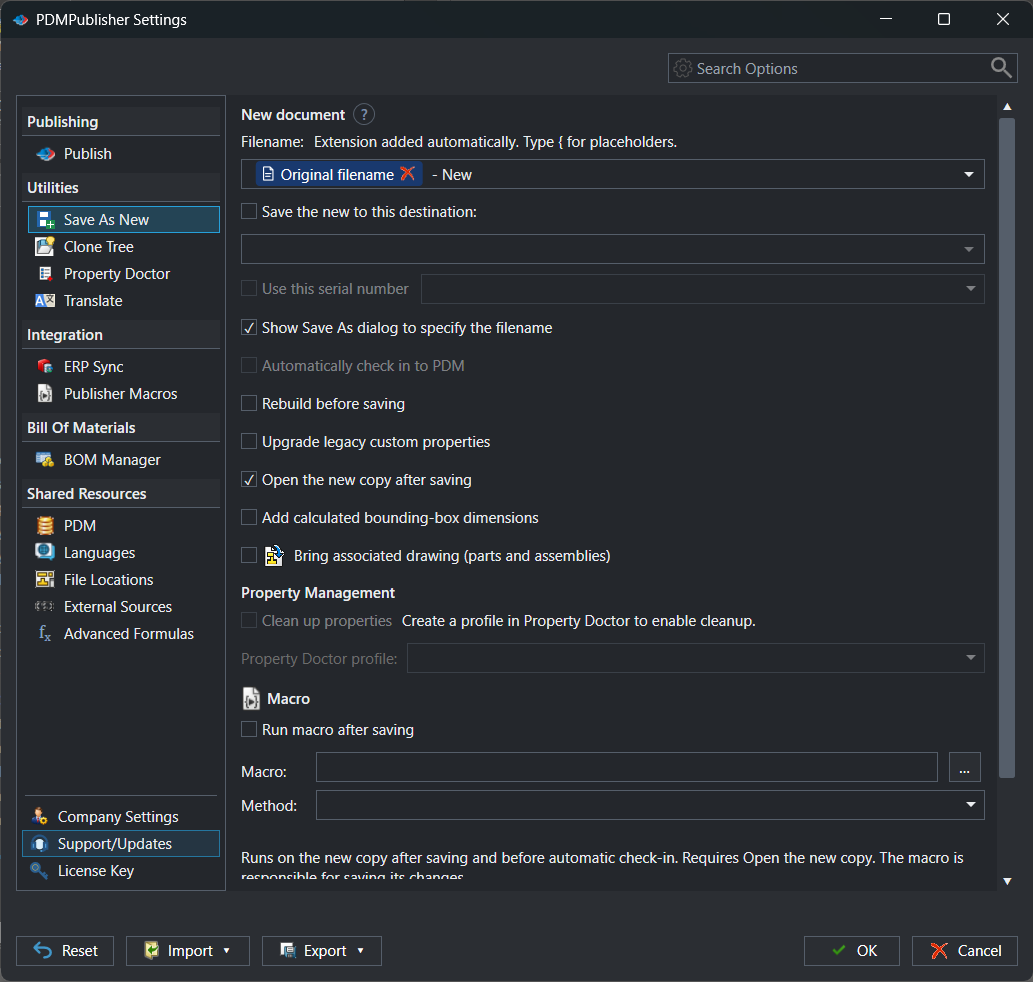
- PDMPublisher rebuilds the document if Rebuild before saving is on, and reserves a PDM serial number if Use this serial number is on.
- The filename and destination templates are evaluated; a Prompt user token asks you for text.
- Validation runs, then the copy is saved. If Show Save As dialog is on, you can confirm or change the target first.
- Post-save actions run in order: bring the drawing, open the copy, write bounding-box properties, run a macro, run a Property Doctor profile, check in to PDM.
Settings that matter
| Setting | What to put | Why |
|---|---|---|
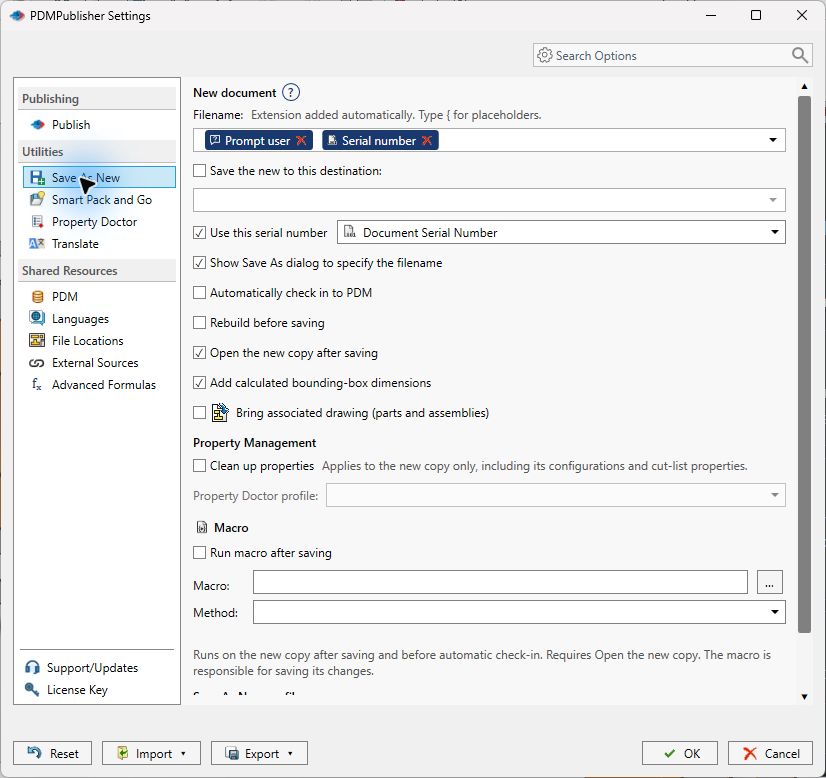
| Filename template | {Serial number}, {Original filename}-{Prompt user} or {PartNumber}-QUOTE | The copy follows the numbering scheme without typing. The extension is added automatically and must not change. |
| Destination | {Vault root folder}\Parts\{Project number} | Filed by project inside the vault; required for automatic check-in. |
| Use this serial number | A PDM serial-number generator | The next number is reserved for the copy and reused if the save is retried. |
| Bring associated drawing | On | The drawing is copied and relinked to the new model. |
| Automatically check in to PDM | On, with a vault destination | No manual check-in step. |
Recipes
| You want | Set | You get |
|---|---|---|
| A new part number from the vault | Filename {Serial number}; destination {Vault root folder}\Parts\{Project number}; Bring drawing; check in | Model and drawing saved under the next number, filed by project, checked in. |
| A customer variant of a released assembly | Filename {Original filename}-{Prompt user}; Rebuild before saving; Open the new copy; Show Save As dialog | You type the customer code, confirm the folder, and keep working in the copy. |
| A quote model with size properties | Filename {PartNumber}-QUOTE; Add calculated bounding-box dimensions; Run macro after saving | The copy carries bounding-box length, width and height for the quote. |
If something looks wrong
- “Filename already exists in the vault”: change the template or the serial-number generator; PDM does not allow duplicate names.
- “Different SOLIDWORKS extension”: the template must not change the extension; it is added for you.
- Check-in did nothing: the destination must be a folder inside the local vault view.
- The macro did not run: enable Open the new copy after saving; the macro runs on the open copy.
Availability
Save As New is part of PDMPublisher for SOLIDWORKS, the add-in that runs inside SOLIDWORKS. It is not part of the PDM Professional task. The Community Edition saves the filename settings but asks for the destination on each save; Premium stores reusable filename and destination settings.
Keep going
Documentation
Frequently asked questions
Does Save As New rename the original file or its references?
No. It creates a separate native SOLIDWORKS document. The source document and the models it references are left untouched.
Can Save As New get the next part number from SOLIDWORKS PDM?
Yes. Enable Use this serial number, select a serial-number generator from the vault chosen on the PDM settings page, and insert the Serial number token in the filename or destination template.
Does the drawing come with the copy?
Enable Bring associated drawing. An open or same-named drawing is copied beside the new part or assembly and its model reference is updated to the copy.
Can the copy be checked in to PDM automatically?
Yes. Automatically check in to PDM adds and checks in the saved model and its drawing, provided the destination is inside the selected vault.
What does the free Community Edition allow?
Community saves the filename settings but asks you to choose the destination for each save. Premium stores reusable filename and destination settings in profiles.
Can I run Save As New from a macro?
Yes. Publisher Macros exposes publisher.SaveAsNew with a profile name and a silent flag. Silent mode requires Premium and a profile without prompt tokens, after-save macros or automatic check-in.