
A release package is easier to review, print and send as one document than as forty. Merge exported PDFs into one master PDF takes the individual drawing PDFs that PDMPublisher creates for an assembly and its references and combines them into a single PDF, in processing order, optionally with a generated table of contents and bookmarks for navigation. It is one checkbox on top of ordinary assembly publishing, and it works the same from the SOLIDWORKS add-in and the PDM Professional task.
What the merge does
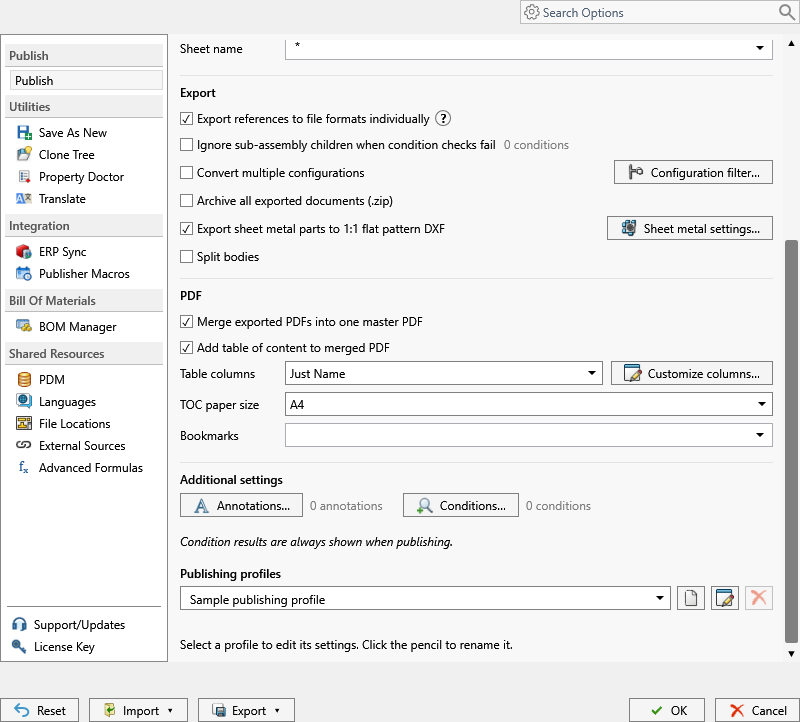
PDMPublisher first publishes the assembly and each referenced component to PDF as separate files, exactly as described in assembly publishing. It then combines those PDFs into one master PDF in processing order. If Add table of content to merged PDF is enabled, a generated contents page is inserted, with the columns chosen under Table columns. If PDF bookmarks has a pattern, each merged document gets a bookmark built from that pattern.
The merge depends on three things: PDF must be selected in File formats; Export references to file formats individually must be enabled, because PDMPublisher needs the individual PDFs before it can merge them; and the source must be an assembly, launched in the task or open in SOLIDWORKS. Conditions still apply, so the master PDF contains only the drawings of references that passed.
Merging is independent of ZIP archiving and of other formats. You can produce the master PDF, the individual PDFs, STEP files and a ZIP from the same job.
Why it matters
Suppliers quote from a package, not a folder. Sending forty PDFs means forty attachments, forty opens, and a good chance one is missed. A single master PDF with a contents page and bookmarks is what an estimator actually wants: open once, scroll or click to any part, print the lot.
Internally it is the natural artifact for design review and release sign-off. One file represents the assembly at one revision; the table of contents doubles as a parts list with quantities; bookmarks make a 200-page package navigable. Because the job runs on a PDM workflow transition or on demand from the right-click Tasks menu, the package is regenerated consistently every time the assembly is released, without anyone opening a PDF tool.
- Supplier RFQ package: every drawing in one PDF, quantities on the contents page.
- Release record: one master PDF per assembly revision, versioned in the vault.
- Shop traveler: bookmarks by part number so the floor can jump to the sheet they need.
- Customer documentation: top-level drawing first, then sub-assemblies and parts in BOM order.
How it works, step by step
- The assembly is published with reference export. In the add-in, references are read from the open assembly; in the task, they are calculated from the selected BOM Template using the chosen Calculation method, or read from the drawing’s named BOM when Use drawing-derived BOM is enabled.
- Conditions filter the reference list. Only references that pass are queued, and in the add-in the condition review dialog lets the operator clear files for this run.
- For each queued file, PDMPublisher finds the same-name drawing beside the model (task: or through Use search to locate drawings), evaluates Sheets to export, applies annotations, and writes an individual PDF named by the Filename pattern to the Export location.
- When all individual PDFs exist, PDMPublisher combines them in processing order into the master PDF.
- If Add table of content to merged PDF is enabled, a contents page is generated using the Table columns selection:
Just Name,Name & Quantity, orCustom Columnsconfigured with Customize Table. - If a PDF bookmarks pattern is set, each document in the master PDF receives a bookmark built from that pattern, so a reader can jump directly to a part.
- The master PDF is saved. If it already exists in the vault, a new version is created with a check-in comment identifying PDMPublisher.
- Results are listed in Publishing results (add-in) or recorded in the vault activity log (task).
Every setting that affects the merged PDF
| Setting | What it does | Notes / default |
|---|---|---|
| Merge exported PDFs into one master PDF | Combines the individual PDFs exported during the job into one master PDF in processing order. | Requires PDF in File formats, Export references to file formats individually, and an assembly source. Parent of the settings below. |
| Add table of content to merged PDF | Inserts a generated contents page into the master PDF and enables its related controls. | Created for the merged PDF only, not for separate PDFs. Disabled until merging is enabled. |
| Table columns | Dropdown: Just Name (file or item name only), Name & Quantity (name and quantity), Custom Columns (columns defined with Customize Table). | Quantity comes from the BOM calculation. See PDF table of contents. |
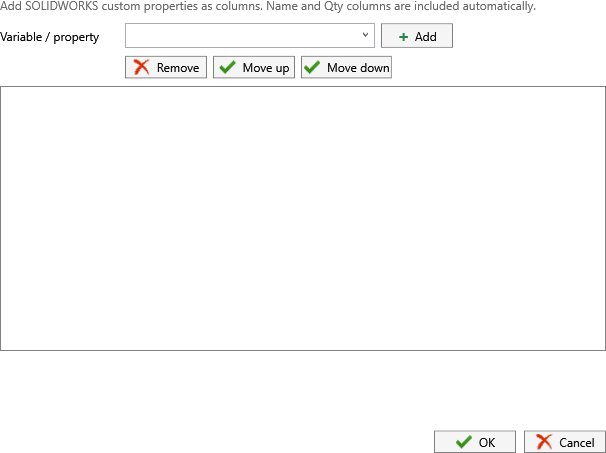
| Customize Table (button) | Opens the dialog for defining the custom columns shown on the contents page. | Used only when Table columns is Custom Columns. |
| PDF bookmarks | Pattern that defines the bookmark text for each document inside the merged PDF. Placeholders come from the >... menu. | Placeholder values offered depend on whether the file comes from PDM or the active SOLIDWORKS document. See PDF bookmarks. |
| Export references to file formats individually | Produces the per-reference PDFs the merge consumes. | Task: select a BOM Template with name, configuration and quantity columns first. |
| File formats | Must include Adobe PDF (pdf). | Other formats can be selected alongside; they are not merged. |
| Template (task) | BOM layout used to calculate references and quantities for the contents page. | Requires <Name>, <Configuration> and <RefCount>. |
| Calculation method (task) | As built (references at check-in) or Latest (latest references in PDM). | Changes which drawings are collected and the quantities shown. |
| Ignore sub-assembly children when condition checks fail | Stops traversal below a rejected sub-assembly, removing its children from the merged PDF. | Leave off if children should still be included. |
| Sheets to export / Sheet name pattern | Controls which sheets of each drawing are included in its individual PDF, and therefore in the master. | One-sheet drawings ignore the pattern; no match exports all sheets. |
| Export affected document (task) | Includes the top-level assembly’s drawing in the job. | Keep enabled when the top-level drawing should lead the package. |
Placeholders for bookmarks and filenames
Bookmark text and the filenames of the individual PDFs are built from the same placeholder set. The >... menu beside each field lists what is available in that context.
- Bookmark pattern
(FileNameWithoutExtension) - ($Description) (x(BOMQuantity))produces a bookmark such asCone - Speaker cone (x4). - Filename
(FileNameWithoutExtension)-(Revision)keeps the individual PDFs revision-stamped while the master PDF carries the assembly name. - Export location
(TopAssemblyFolder)\Release\(Revision)keeps every individual PDF and the master together beside the assembly.
| Placeholder | Value | Example |
|---|---|---|
(FileNameWithoutExtension) | Component or drawing name without extension. | Cone |
(TopAssemblyName) | Name of the assembly that launched the job. | Speaker |
(ConfigurationName) | Configuration being exported. | Default |
(BOMQuantity) | Quantity calculated from the BOM template and reference data. | 4 |
(Revision) | PDM revision; empty if none. | B |
(State) | PDM workflow state. | Released |
($Description) | Any PDM variable, chosen from the PDM Variables submenu. | Speaker frame |
Set it up in the SOLIDWORKS add-in
- Open the assembly in SOLIDWORKS, save it, and resolve its references. Confirm each component that should appear has a same-name drawing beside it.
- Select PDMPublisher > Settings > Publish and pick or create a profile.
- Set Export location and Filename. In File formats, tick Adobe PDF.
- Under Export, enable Export references to file formats individually.
- Scroll to the PDF section and enable Merge exported PDFs into one master PDF.
- Optionally enable Add table of content to merged PDF, choose Table columns (and Customize Table for custom columns), and enter a PDF bookmarks pattern.
- Select PDMPublisher > Conditions if only some references belong in the package. Select OK.
- Select PDMPublisher > Publish. Confirm the reviewed file list if the condition dialog appears.
- Open the master PDF from Publishing results with Open file, and check PDMPublisher > Logs for any skipped drawing.
The Community Edition of the add-in processes up to 5 references per run, which limits how many drawings can be merged. Premium removes the limit.
Set it up in the PDM Professional task
- In PDM Administration, create a task with the PDMPublisher add-in and permit the task hosts under Execution Method.
- On Options, select a BOM Template that includes
<Name>,<Configuration>and<RefCount>, and choose the Calculation method. - Set Export Location, Filename, and select PDF in File Formats. Confirm Use this version of SOLIDWORKS.
- Enable Export references to file formats individually and keep Export affected document on.
- Under PDF, enable Merge exported PDFs into one master PDF, then optionally Add table of content to merged PDF, Table columns and PDF bookmarks.
- If drawings are stored away from their models, enable Use search to locate drawings. For release workflows, enable Get latest revision only.
- On the Conditions page, restrict which references are included if required.
- Enable Vault Activity Logs with a writable Log Folder (Vault Only) and select OK. Attach the task to a workflow transition or run it from the right-click Tasks menu on the assembly.
Recipes
| Scenario | Settings | Result |
|---|---|---|
| RFQ package with quantities | Formats: PDF. Export references individually on. Merge on. Add table of content on with Name & Quantity. Bookmarks (FileNameWithoutExtension) (x(BOMQuantity)). Conditions: Make/Buy equals Make. | One PDF containing only made parts, a contents page listing each with its quantity, and a bookmark per part. |
| Release record on transition | Task on the Released transition. Get latest revision only on. Merge on. Export Location (VaultRootFolder)\Release Packages\(TopAssemblyName)\(Revision). | A master PDF per assembly revision, built from the reference set saved with that revision, versioned in the vault. |
| Customer documentation with custom columns | Add-in profile. Merge on. Table columns Custom Columns with Customize Table. Bookmarks (FileNameWithoutExtension) - ($Description). Sheets matching name CUSTOMER*. | Only customer-facing sheets are merged, with a contents page showing your chosen columns and descriptive bookmarks. |
Tips, limits and troubleshooting
- No master PDF was created. Check the three prerequisites: PDF is in File formats, Export references to file formats individually is on, and the job ran on an assembly.
- Drawings missing from the master. A component without a same-name drawing beside it produces no PDF. In the task, enable Use search to locate drawings, or check conditions and the Skipped filter in the log.
- Wrong order or quantities (task). The BOM Template drives reference order and quantities; confirm it has
<RefCount>and<Configuration>columns and that the Calculation method matches your expectation. - “Cannot find or create the font ‘Helvetica-Bold'” when opening the merged PDF. This message comes from the PDF reader. Install the appropriate font.
- Table of contents controls are greyed out. They remain unavailable until both merging and table-of-contents generation are enabled.
- Not all references captured (task). The assembly and its references need local copies on the task host; get latest there first.
- Cancelled mid-job. Individual PDFs already written remain in the export location. Inspect before rerunning so a partial set is not mistaken for the new package.
- Support. Save the add-in log with Save… right after the job, or open the task log from the Task Details tab, and include the assembly filename.
Availability
Available in PDMPublisher for SOLIDWORKS (the add-in) and PDMPublisher for PDM Professional (the task). Merging is shared by the SOLIDWORKS add-in and the PDM Professional task. It requires PDF in File formats, Export references to file formats individually, and an assembly as the source.
Documentation and related features
- Run a Publish Job in the SOLIDWORKS add-in
- Merge Exported PDFs into One Master PDF
- PDF table of contents
- PDF bookmarks
- SOLIDWORKS assembly documents
- SOLIDWORKS drawing documents
- Conditional assembly processing
- Watermark your PDFs
Frequently asked questions
How do I combine all drawings of a SOLIDWORKS assembly into one PDF?
Select PDF in File formats, enable Export references to file formats individually and Merge exported PDFs into one master PDF, then publish the assembly from SOLIDWORKS or run the PDM task on it.
Why is Merge exported PDFs doing nothing on a part?
Merging is for assembly processing. It needs the individual reference PDFs that only an assembly job produces.
Can the merged PDF include a parts list with quantities?
Yes. Enable Add table of content to merged PDF and set Table columns to Name & Quantity, or to Custom Columns and define them with Customize Table.
In what order are the PDFs merged?
In processing order. In the PDM task that follows the reference calculation from the BOM Template; in the add-in it follows the resolved assembly references.
Are the individual PDFs kept after merging?
The merge combines the exported PDFs; it is independent of the individual export and of ZIP archiving, so the per-reference outputs are part of the same job.
Does the free add-in support merging?
Yes, merging, conditions and annotations are available in the Community Edition, but it processes up to 5 references per run. Premium and the PDM task have no such limit.