
Drawings (.slddrw) are what leaves engineering: the PDF the machinist reads, the DXF the laser cutter loads, the DWG the customer asked for. PDMPublisher exports a SOLIDWORKS drawing to any of those from one job, decides which sheets to include with a wildcard or a configuration-based pattern, and names the output with the revision so an outdated print can never be confused with the current one. It runs interactively from the PDMPublisher tab in SOLIDWORKS or unattended as a PDM Professional task.
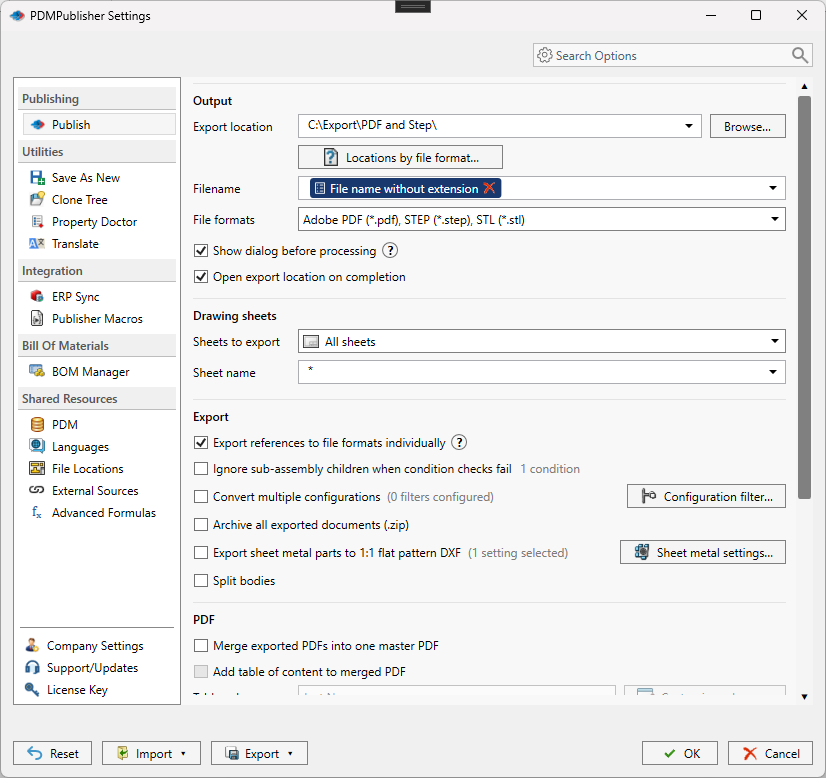
What drawing publishing does
A drawing job opens the .slddrw, evaluates Sheets to export, and exports the selected sheets to each format ticked in File formats. PDF is the usual output; DXF and DWG convert the drawing sheets to 2D CAD; edrw produces an eDrawings Drawing file.
Drawings are also reached indirectly. When PDF is selected for a part or assembly, PDMPublisher looks for a drawing with the same name in the same folder and exports that drawing instead of the model. That is how a task launched on Bracket.SLDPRT produces Bracket.pdf from Bracket.SLDDRW. In the PDM task, Use search to locate drawings can find a drawing stored in a different folder; drawing and model names must match.
When an assembly is published with Export references to file formats individually, each referenced component’s drawing is exported the same way, which is what makes merging every drawing into one PDF possible.
Why it matters
The drawing PDF is the contract with the shop. If the wrong sheet goes out, or the file is named without a revision, or a reference sheet meant for internal use is included, the cost shows up as scrap or a rejected lot. Manual Save As from SOLIDWORKS does not enforce any of that; it saves whatever sheets are in the file under whatever name the user types.
PDMPublisher turns sheet selection and naming into rules. Sheets matching name with a pattern such as REV? or (ConfigurationName) exports only the sheet that belongs to the configuration being released. A filename of (FileNameWithoutExtension)-(Revision) stamps the PDM revision on every output. And because the task attaches to a workflow transition, the released PDF appears the moment the drawing changes state, not when someone remembers to make it.
How it works, step by step
- PDMPublisher identifies the drawing: the active document in SOLIDWORKS, the file the task was launched on, or the same-name drawing found beside a part or assembly being published to PDF.
- The drawing is opened in the SOLIDWORKS version running (add-in) or configured in Use this version of SOLIDWORKS (task). In the task, Quick view mode (Drawings Only) can open the drawing in quick view to cut load time for very large drawings.
- Sheets to export is evaluated.
All sheetsexports every sheet.Sheets matching nameevaluates the Sheet name pattern, including any placeholder such as(ConfigurationName), and keeps only the sheets whose names match. - The fallback rule applies: a one-sheet drawing always exports its only sheet without evaluating the pattern; a multi-sheet drawing with at least one match exports only the matches; a multi-sheet drawing with no match exports every sheet and records the fallback in the log (version 2026.08.09 and later).
- Export location and Filename placeholders are resolved.
(Extension)isslddrw;(TargetExtension)ispdf,dxfordwg. - Each selected format is exported. For PDF, the normal SOLIDWORKS PDF export is used unless Use Microsoft Print To PDF to save PDFs is enabled, in which case the Windows printer path is used.
- Annotations configured in the profile or task (notes, watermarks, BOM quantities) are placed on the exported PDF.
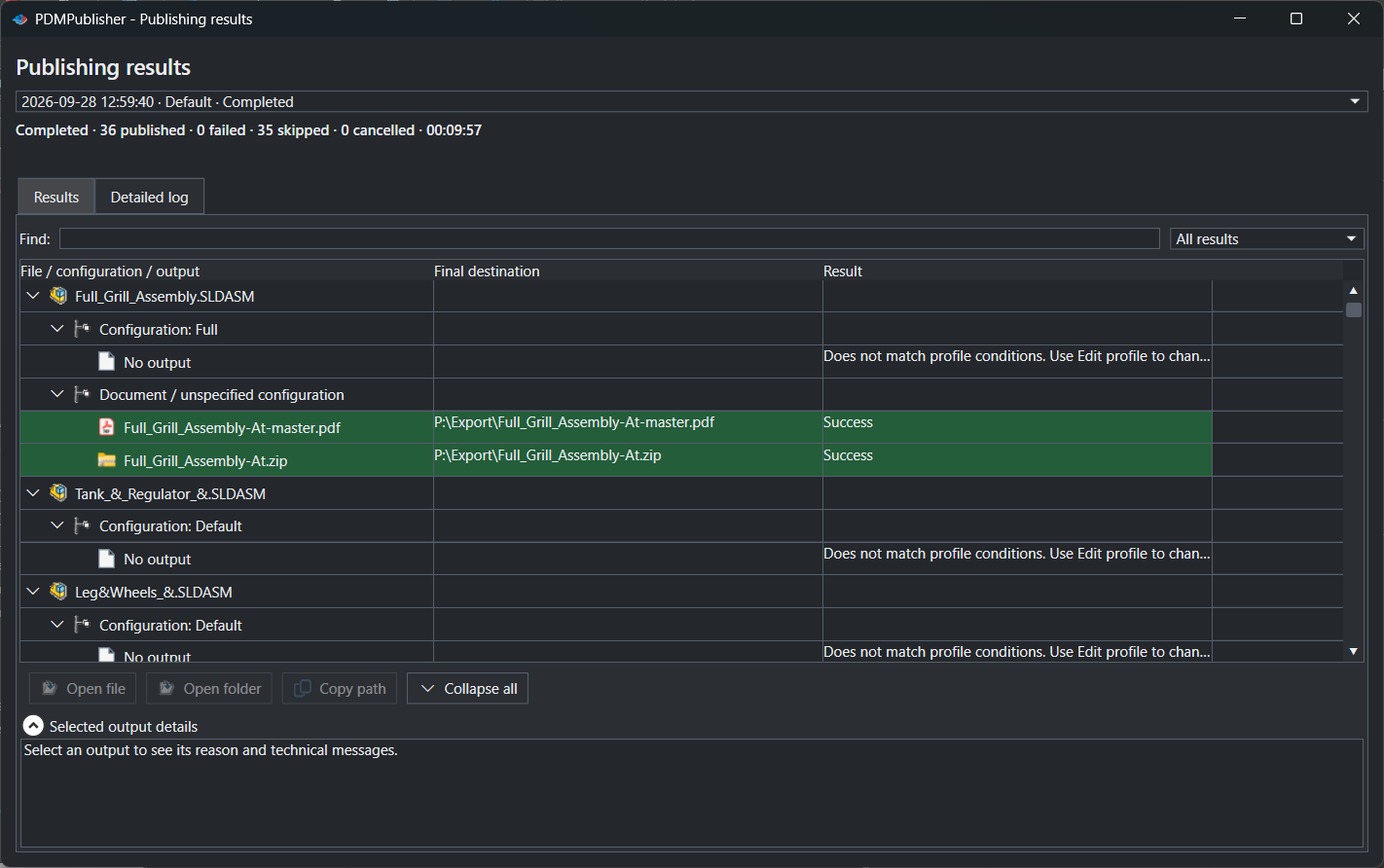
- The file is written; if it already exists in the vault, a new version is created with a check-in comment identifying PDMPublisher. Results appear in Publishing results (add-in) or the vault activity log (task).
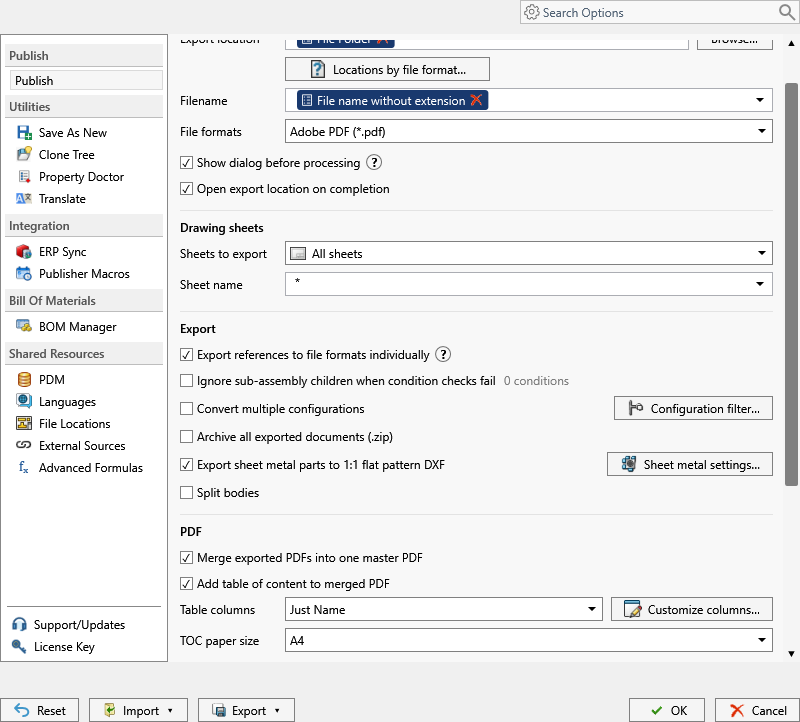
Every setting that affects a drawing export
| Setting | What it does | Notes / default |
|---|---|---|
| Sheets to export | Dropdown: All sheets exports every sheet; Sheets matching name exports sheets matching the pattern. | If no sheet matches, all sheets are exported and the log records the fallback. |
| Sheet name pattern / Sheet name | Wildcard pattern evaluated against sheet names. * matches any text, ? one character. Placeholders such as (ConfigurationName) are evaluated before matching. | Ignored for one-sheet drawings. Used only when Sheets to export is Sheets matching name. |
| File formats | Output formats for the drawing: Adobe PDF (pdf), DWG (dwg), DXF (dxf), eDrawings Drawing (edrw), plus image and other formats valid for drawings. | Formats not valid for a drawing are removed automatically. Community Edition: PDF, DXF and STEP only. |
| Export location | Destination folder built from text and placeholders; vault, relative, UNC or outside the vault. | No trailing backslash. User needs add/check-in/overwrite rights inside the vault. |
| Locations by file format | Per-format destination override, for example DXF to \\server\laser\DXF while PDF stays in the vault. | Premium in the add-in. Logs identify customized paths. |
| Filename | Output filename pattern; the extension comes from the format. | Use revision or sheet-specific values when one drawing creates several outputs. |
| Quick view mode (Drawings Only) (task) | Opens drawings in quick view mode where supported to reduce load time. | Uses the cached drawing view and may not reflect the latest referenced model data. Only for extremely large drawings. |
| Use Microsoft Print To PDF to save PDFs | Creates PDFs through the Windows Microsoft Print to PDF printer instead of the SOLIDWORKS exporter. | Only when the normal export path does not match your environment. |
| Use search to locate drawings (task) | Uses PDM search or Where Used when a drawing is not beside its model. | Drawing and model names must match. Not available in the add-in. |
| Use this version of SOLIDWORKS (task) | Selects the installed SOLIDWORKS version that opens the drawing on the task host. | Must be installed on every permitted task host. |
| Show dialog before processing (add-in) | Shows the Publish dialog to review the profile before the job starts. | |
| Open export location on completion (add-in) | Opens the destination folder after a successful job. |
Sheet name patterns and placeholders
The Sheet name pattern accepts wildcards and placeholders. Common wildcards:
- A drawing with sheets
Default,MachinedandWelded, published for configurationWeldedwith pattern(ConfigurationName), exports only theWeldedsheet. - The same drawing published for configuration
Paintedexports all three sheets, because the evaluated pattern matches nothing and the fallback applies. The log records it. - For a multi-sheet drawing,
(ConfigurationName)is evaluated from the associated model and matched against the sheet names.
| Pattern | Matches | Does not match |
|---|---|---|
* | Every sheet | |
Sheet* | Sheet1, Sheet2, Sheet-Main | Main |
REV? | REV1, REVA | REV10 |
DXF* | Sheets whose names start with DXF | Main-DXF |
(ConfigurationName) with configuration Machined | Machined | Default, Machined-DXF |
(ConfigurationName)* | Machined, Machined-DXF | Default |
*(ConfigurationName)* | Machined, DXF-Machined, Machined-REV-A | Default |
A spelling error, a missing property value or an unexpected configuration name makes the pattern match nothing. Since version 2026.08.09 that exports every sheet instead of nothing. If all sheets were exported unexpectedly, check the task log or the add-in Logs tab for the fallback message.
Filename placeholders for drawings
- Filename
(FileNameWithoutExtension)-(Revision)forBracket.SLDDRWat revision B producesBracket-B.pdfandBracket-B.dxf. - Export location
(VaultRootFolder)\Released PDFs\(FileNameNumberRange)for11345.SLDDRWresolves toC:\PDMVault\Released PDFs\11000-11999.
| Placeholder | Value | Example |
|---|---|---|
(FileNameWithoutExtension) | Drawing name without extension. | Bracket |
(Revision) | Current PDM revision; empty if none. | B |
(State) | PDM workflow state. | Released |
(ConfigurationName) | Configuration associated with the output. | Machined |
(Extension) | Source extension without period. | slddrw |
(TargetExtension) | Output format extension. Do not add another period and extension after it. | pdf |
(Date) | Host short date with / replaced by -. | 8-13-2026 |
($VariableName) | PDM variable from the PDM Variables submenu. If empty on the drawing, PDMPublisher may read it from the matching part or assembly. | ($Description) |
Set it up in the SOLIDWORKS add-in
- Open the drawing in SOLIDWORKS and save it. Activate the sheet and configuration you expect to be evaluated.
- Select PDMPublisher > Settings > Publish and choose or create a profile.
- Set Export location and Filename, for example
(FileNameWithoutExtension)-(Revision). - In File formats, tick PDF and, if the shop needs them, DXF or DWG. Optionally set a DXF-only folder under Locations by file format.
- Under Drawing sheets, set Sheets to export to
All sheetsorSheets matching name, and enter the Sheet name pattern for the second mode. - Scroll down to configure annotations (watermarks, revision stamps) if needed. Select OK.
- Select PDMPublisher > Publish, using the arrow to pick the profile. Review Publishing results and PDMPublisher > Logs.
Set it up in the PDM Professional task
- In PDM Administration, create a task with the PDMPublisher add-in and permit the task hosts under Execution Method.
- On Options, set Export Location, Filename and File Formats (PDF, DXF, DWG as required).
- Confirm Use this version of SOLIDWORKS is installed on the task host.
- Under Drawing Sheets, set Sheets to export and Sheet name pattern.
- If drawings are not always beside their models, enable Use search to locate drawings so PDF runs from parts and assemblies still find them.
- For extremely large drawings only, consider Quick view mode (Drawings Only). Leave it off when the PDF must reflect the latest model data.
- Enable Vault Activity Logs with a writable Log Folder (Vault Only) for testing, then OK.
- Attach the task to the transition into your released state, or run it from the right-click Tasks menu on a drawing.
Recipes
| Scenario | Settings | Result |
|---|---|---|
| Released PDF on transition | Task on the Released transition. Formats: PDF. Sheets to export: All sheets. Export Location (VaultRootFolder)\Released PDFs\(FileNameNumberRange). Filename (FileNameWithoutExtension)-(Revision). | Every released drawing lands in a numbered-range folder as 11345-B.pdf, with a new version created if it already exists. |
| Configuration-specific sheet | Add-in profile. Sheets to export: Sheets matching name. Sheet name: (ConfigurationName)*. Filename (FileNameWithoutExtension)_(ConfigurationName). | Publishing configuration Machined exports the Machined and Machined-DXF sheets only, as Bracket_Machined.pdf. |
| PDF to vault, DXF to the laser | Formats: PDF, DXF. Export location in the vault. Locations by file format: DXF enabled to \\server\laser\DXF. Sheet name: DXF* with Sheets matching name. | The full drawing PDF is versioned in PDM while only the DXF-prefixed sheets go to the laser share as DXF. |
Tips, limits and troubleshooting
- All sheets exported when I expected one. The pattern matched nothing and the fallback applied. Check the log for the fallback message and verify spelling, the property value or the configuration name.
- One-sheet drawing ignores the pattern. By design: a single-sheet drawing always exports its only sheet.
- DXF selected but no flat pattern. DXF in File formats converts drawings only. Flat patterns from sheet metal parts use Export sheet metal parts to 1:1 flat pattern DXF; see Sheet metal publishing.
- No PDF from a part or assembly. A same-name drawing must exist in the same folder, or (task) be found by Use search to locate drawings.
- Quick view output is stale. Quick view uses the cached drawing view. Turn it off when the model has changed since the drawing was last saved.
- Helvetica-Bold font warning in a merged PDF. This comes from the PDF reader; install the font.
- Empty PDM variable on the drawing. PDMPublisher may read it from the matching part or assembly. An empty value contributes an empty string, so mind separators in the filename.
- Support. Save the add-in log with Save… right after the job, or open the task log with Open Log File from the Task Details tab, and include the source filename.
Availability
Available in PDMPublisher for SOLIDWORKS (the add-in) and PDMPublisher for PDM Professional (the task). Drawing sheet selection and the sheet name pattern are shared by the SOLIDWORKS add-in and the PDM Professional task. Quick view mode is a task-only setting.
Documentation and related features
- Run a Publish Job in the SOLIDWORKS add-in
- Sheets to Export reference
- Merge multiple drawings into one PDF
- Watermark your PDFs
- Sheet metal publishing
- SOLIDWORKS part documents
- SOLIDWORKS assembly documents
- Extension-specific locations
Frequently asked questions
How do I export only one sheet of a SOLIDWORKS drawing to PDF?
Set Sheets to export to Sheets matching name and enter a pattern that matches that sheet, such as REV? or (ConfigurationName). For a one-sheet drawing the pattern is ignored and the only sheet is exported.
What happens if the sheet name pattern matches no sheets?
Since version 2026.08.09 PDMPublisher exports every sheet and writes a fallback message to the log instead of producing an empty selection.
Can PDMPublisher export a drawing to DXF and DWG as well as PDF?
Yes. Tick DXF and DWG alongside PDF in File formats and one job produces all three. Use Locations by file format to route DXF to a different folder.
Does publishing a part create the drawing PDF?
Yes, when a drawing with the same name exists in the same folder. The PDM task can also locate a drawing elsewhere with Use search to locate drawings.
Is quick view mode safe for released drawings?
Use it only for extremely large drawings. It relies on the cached drawing view and may not reflect the latest referenced model data.