
An assembly document (.sldasm) is where PDMPublisher earns its keep. One job on the top-level assembly can export the assembly itself, every referenced part and sub-assembly, and their drawings, in every selected format, filtered by conditions and named with placeholders. That is a complete release package or supplier kit from a single command in SOLIDWORKS or a single workflow transition in PDM Professional. This article covers how the references are found, every setting that changes the result, and the recipes most teams use.
What assembly publishing does
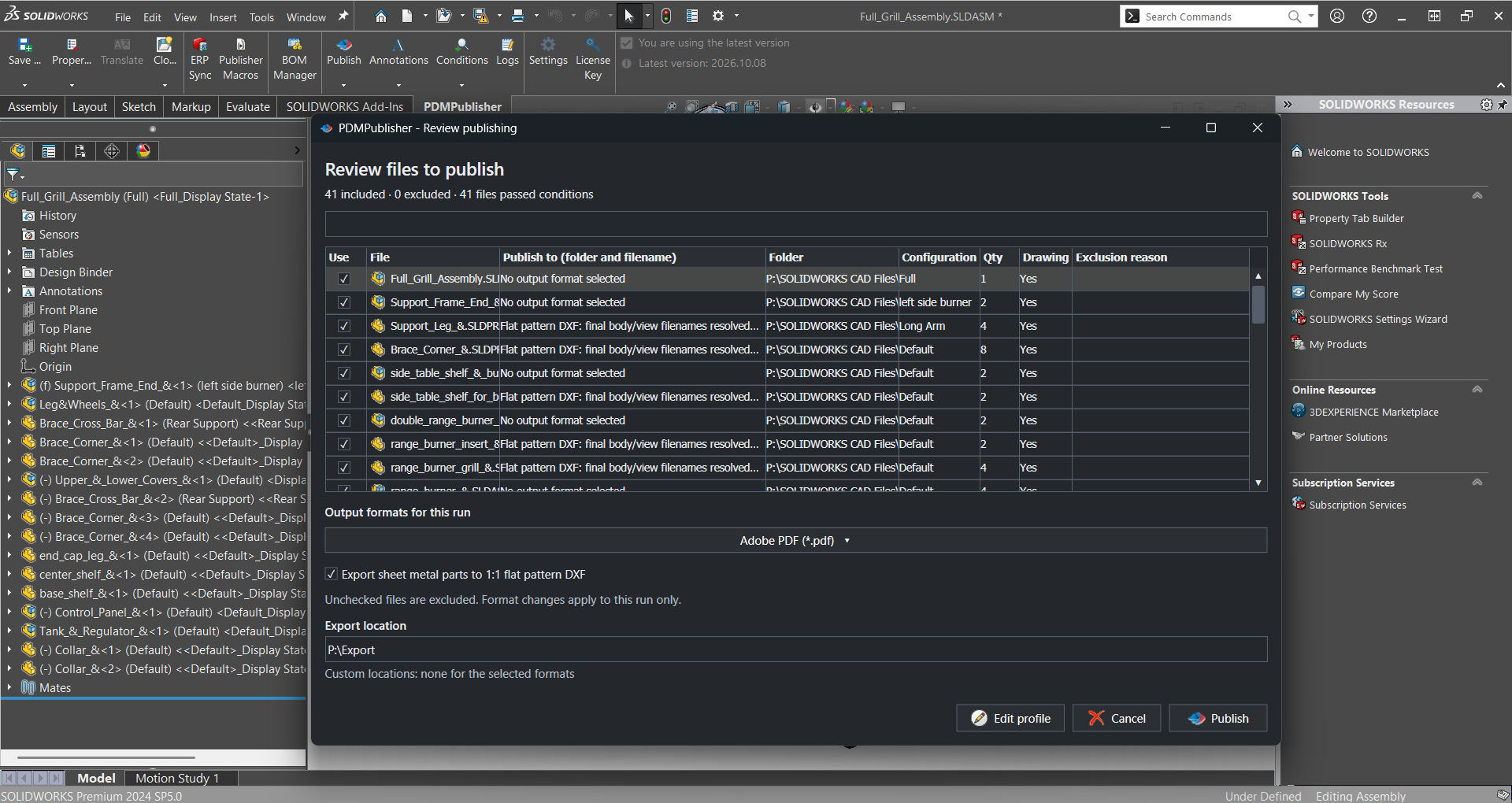
With Export references to file formats individually enabled, PDMPublisher walks the assembly structure and exports each referenced component as its own file in the selected formats. A 41-file assembly with PDF and STEP selected produces up to 82 files, each named by the filename pattern and placed by the export location pattern. Repeated components are exported once.
Conditions decide which references make the cut: publish only parts in state Released, skip purchased components, ignore anything whose description contains reference. Ignore sub-assembly children when condition checks fail stops traversal below a rejected sub-assembly. Once the individual PDFs exist, merging them into one master PDF with a table of contents and bookmarks is one more checkbox.
The top-level assembly is exported too (task: controlled by Export affected document). Reference export is independent of PDF merging and ZIP archiving.
Why it matters
A release is not one file. A fabricator needs the STEP of every machined part, the PDF of every drawing, the flat pattern of every sheet-metal blank, and a top-level PDF that shows how it goes together. Assembling that package by hand means opening each component, exporting, naming, and filing it, then doing it again when revision B ships. Missing one part means a phone call from the shop floor.
PDMPublisher makes the package a function of the assembly. Because the references come from the model (add-in) or the PDM BOM (task), nothing is forgotten. Because conditions are evaluated per file, purchased items and standard hardware stay out. Because the job can run on a PDM workflow transition, the package exists when the assembly is released, not when someone remembers.
How references are found
The two products obtain the assembly structure differently, and this is the single most important thing to understand about assembly publishing.
- Suppressed, virtual, envelope and components excluded from the BOM are ignored when quantities are calculated. Most of these settings come from the SOLIDWORKS component properties dialog.
- The task can optionally read the first named BOM saved on the assembly’s drawing instead of calculating one (Use drawing-derived BOM). The Template is still required as a fallback.
| Product | Where references come from | Requirements |
|---|---|---|
| SOLIDWORKS add-in | Reads the resolved assembly references directly from the open document. | Open the assembly in SOLIDWORKS with references resolved. No BOM template is needed. Community Edition processes up to 5 references per run; Premium has no limit. |
| PDM Professional task | Builds a Bill of Materials in memory from the selected PDM BOM Template, using the Calculation method (as built or latest references). | Run the task on an assembly and select a Template that includes <Name>, <Configuration> and a quantity (<RefCount>) column. The assembly and references must have local copies on the task host. |
How a job runs, step by step
- The top-level assembly is identified: the active document in SOLIDWORKS, or the file the task was launched on. In the task, Get latest revision only or Work with latest version decides which PDM version and reference set is retrieved.
- References are collected as described above. With Convert multiple configurations enabled, each configuration that passes the Configuration filter is processed separately.
- Conditions are evaluated for each found reference. If the condition tree passes, the reference is added to the processing queue. With Ignore sub-assembly children when condition checks fail, a rejected sub-assembly’s children are not processed.
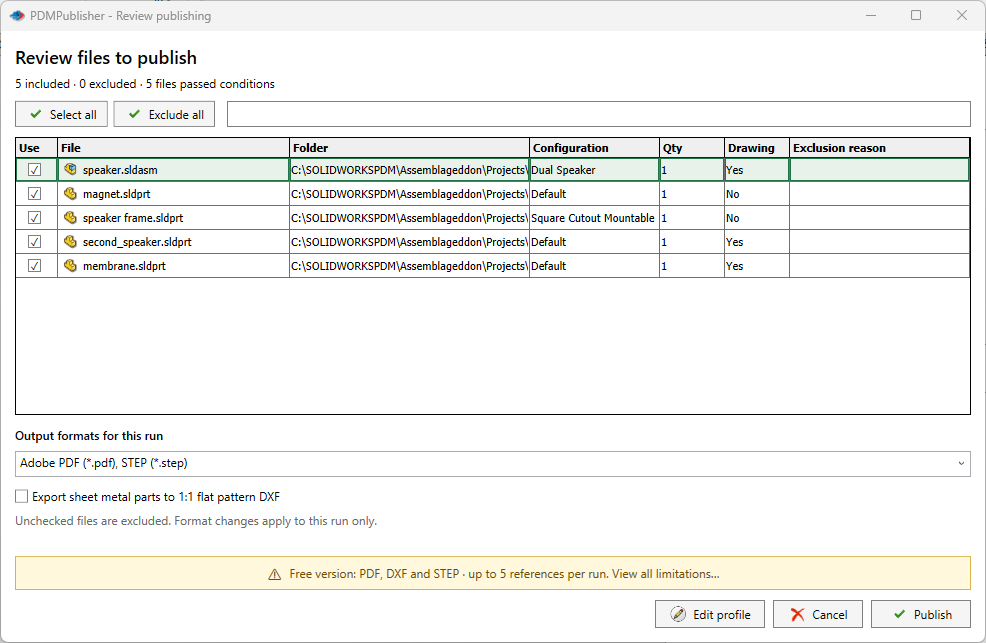
- In the add-in, when Show conditions output dialog is enabled, the references that passed are listed with their output paths. Clear a file to omit it from this run; confirm or cancel.
- For each queued file, placeholders in Export location and Filename are resolved.
(FileFolder)follows the individual file;(TopAssemblyFolder)and(TopAssemblyName)stay tied to the assembly that launched the job. - Each selected format is exported. For
PDF, PDMPublisher looks for a same-name drawing beside each model (task: or via Use search to locate drawings) and exports the drawing. - Optional post-processing runs: PDF merge, table of contents, bookmarks, annotations, ZIP.
- Results appear in Publishing results (add-in) or the vault activity log (task).
Every setting that affects an assembly export
| Setting | What it does | Notes / default |
|---|---|---|
| Export references to file formats individually | Exports referenced components as their own files in the selected formats. | Required for conditions to filter references and for PDF merging. Task: select a BOM Template first. |
| Export affected document (task) | Exports the top-level file that triggered the task. | Disable only to process references but not the top-level assembly. |
| Ignore sub-assembly children when condition checks fail | When conditions reject a sub-assembly, its children are not processed. | Leave off if children of a rejected sub-assembly should still export independently. No effect on standalone parts or drawings. |
| Convert multiple configurations + Configuration filter | Processes every configuration instead of the active or launched one; the filter includes or excludes configurations by name or wildcard. | Add (ConfigurationName) to the filename first. Exclude *Flat* when exporting STEP. |
| Template (task) | Selects the PDM BOM layout used to calculate references, configurations and quantities. | Must include <Name>, <Configuration> and quantity/<RefCount> columns. Never leave empty when exporting references. |
| Calculation method (task) | As built uses references as they were when the assembly was checked in; Latest uses the latest references in PDM. | Applies to the calculated BOM, including the fallback for drawing-derived BOMs. |
| Use drawing-derived BOM (task) | Uses the first named BOM saved on the assembly’s drawing to define references, configurations and quantities. | Needs a drawing in PDM with a saved named BOM. Falls back to the Template BOM; log lines are prefixed Drawing-derived BOM:. |
| Use search to locate drawings (task) | Uses PDM search or Where Used when a drawing is not beside the model; with drawing-derived BOM, searches the assembly’s Where Used parents first. | Drawing and model names must match. |
| Get latest revision only (task) | Publishes the newest recorded PDM revision and the references saved with it, not the newest checked-in version. | Overrides Work with latest version. A file without a recorded revision fails instead of publishing unrevised work. |
| Work with latest version (task) | Forces PDM to get the latest version of files before publishing. | Use carefully in release workflows; it can change the exported reference set. |
| Ask user to select configuration on startup (task) | Prompts for a configuration and a Custom Quantity Multiplier at launch. | Multiplier applies to (BOMQuantity): 2 x 3 = 6. Overridden by Ask user to specify files on task launch. |
Conditions: choosing which references to publish
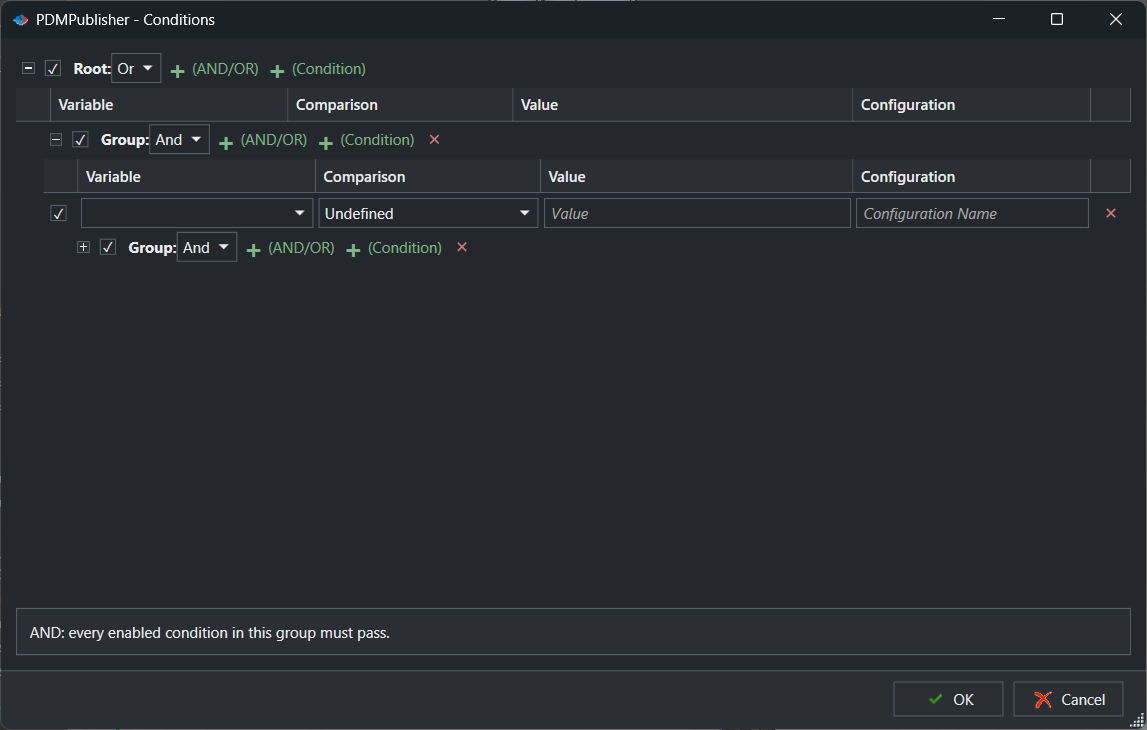
Conditions decide which assembly files are included. In the add-in, select PDMPublisher > Conditions to edit the active profile’s tree (or use the arrow for a named profile); in the task, use the Conditions setup page. Conditions are evaluated for each found reference; if the tree evaluates to true, the reference is queued. Build from the root downward with AND (every child must pass) or OR (any child may pass) groups.
| Control | What it does | Notes |
|---|---|---|
| Enable check box | Enables the root, group or condition row. | Disabled items stay in the profile but are not evaluated. |
| AND / OR | Whether every child must pass or any child may pass. | Set per group; nest groups for mixed logic. |
| + (AND/OR), + (Condition) | Adds a nested group or a condition row. | |
| Variable, Comparison, Value | What to evaluate, the test, and the value. | A new row stays Undefined until a comparison is chosen. |
| Configuration | Limits property evaluation to a named configuration. | |
| Delete (×), OK / Cancel | Removes a row; saves or discards the tree. |
Enable Export references to file formats individually whenever conditions must filter the assembly’s references. Without it, there are no references to filter. See Conditional assembly processing for the full field and comparison list.
Placeholders that matter for assemblies
- Export location
(TopAssemblyFolder)\Exports\(State)\(Revision)puts every reference ofC:\PDMVault\Projects\1001\Speaker.SLDASM(Released, rev B) intoC:\PDMVault\Projects\1001\Exports\Released\B, regardless of where each part lives. - Filename
(TopAssemblyName)_(FileNameWithoutExtension)_(ConfigurationName)yieldsSpeaker_Cone_Default.step, so files from different assemblies never collide in a shared folder.
| Placeholder | Value | Example |
|---|---|---|
(TopAssemblyFolder) | Folder of the top-level file that launched the job, constant for every reference. | C:\PDMVault\Projects\Speaker |
(TopAssemblyName) | Filename of the top-level file without extension. | Speaker |
(FileFolder) | Folder of the individual file being exported. | C:\PDMVault\Projects\Speaker\Components |
(FileNameWithoutExtension) | Current file’s name without extension. | Cone |
(ConfigurationName) | Configuration being exported; the PDM @ configuration is written At. | Machined |
(BOMQuantity) | Quantity calculated for the file from the BOM template and reference data, times any launch multiplier. | 4 |
($VariableName) | Any PDM variable from the PDM Variables submenu. | ($ProjectNumber) = P-24017 |
Set it up in the SOLIDWORKS add-in
- Open the assembly in SOLIDWORKS, save it, and resolve suppressed, lightweight or missing references. Missing references cannot be processed reliably.
- Open PDMPublisher > Settings > Publish and select or create a profile.
- Set Export location, for example
(TopAssemblyFolder)\Exports\(Revision), and Filename, for example(FileNameWithoutExtension)-(Revision). - Select the File formats the package needs.
- Under Export, enable Export references to file formats individually. Decide on Ignore sub-assembly children when condition checks fail and Convert multiple configurations.
- Optionally enable Archive all exported documents (.zip), and under PDF, Merge exported PDFs into one master PDF. Select OK.
- Select PDMPublisher > Conditions to build the filter tree for this profile, then OK.
- Select PDMPublisher > Publish. If the condition review dialog is enabled, check the list, clear anything you do not want this time, and confirm.
- Review Publishing results, which reports published, failed, skipped and cancelled totals per output.
Community Edition processes up to 5 references per publishing run. For larger assemblies, activate Premium under PDMPublisher > License Key.
Set it up in the PDM Professional task
- In the PDM Administration tool, create a new task with the PDMPublisher add-in and permit the task hosts under Execution Method.
- On the Options page, select the BOM Template first. Confirm the layout includes
<Name>,<Configuration>and<RefCount>. Choose the Calculation method. - Set Export Location, Filename and File Formats, and confirm Use this version of SOLIDWORKS.
- Enable Export references to file formats individually. Keep Export affected document on if the top-level assembly should be exported too.
- For release workflows, enable Get latest revision only so the task publishes the revision’s saved reference set rather than unrevised work in progress.
- If drawings live in other folders, enable Use search to locate drawings. If the drawing BOM should drive the structure, enable Use drawing-derived BOM.
- Decide on Ignore sub-assemblies children when condition checks fail and Convert multiple configurations.
- On the Conditions page, define which referenced files are included.
- Enable Vault Activity Logs with a Log Folder (Vault Only) the task user can write to, then OK. Attach the task to a workflow transition or run it from the right-click Tasks menu on the assembly.
Recipes
| Scenario | Settings | Result |
|---|---|---|
| Release package on state change | Task on the Released transition. Formats: PDF, STEP. Export references individually on. Get latest revision only on. Export Location (VaultRootFolder)\Release Packages\(TopAssemblyName)\(Revision). Archive (.zip) on. | One ZIP per assembly revision containing every released part’s PDF and STEP, built from the exact reference set saved with that revision. |
| Supplier kit for made parts only | Add-in profile. Formats: STEP, PDF. Export references individually on. Conditions: root AND, Make/Buy property equals Make. Ignore sub-assembly children when condition checks fail off. | Only manufactured parts are exported; purchased hardware is skipped even when nested inside a rejected purchased sub-assembly’s siblings. |
| Drawing BOM as the source of truth | Task. Use drawing-derived BOM on, Use search to locate drawings on, Template still selected. Filename (FileNameWithoutExtension)-QTY(BOMQuantity). | Quantities and structure follow the first named BOM on the assembly drawing; the calculated BOM is used only if the drawing or its BOM is unavailable. |
Tips, limits and troubleshooting
- Not all references are captured (task). The assembly and its references need local copies on the task host. Get latest on the assembly and references on that machine; this is by design.
- BOM layout errors. The task uses the PDM BOM, not the SOLIDWORKS BOM. The selected layout must include
<RefCount>and<Configuration>columns. - Wrong quantities or missing files with drawing-derived BOM. If a drawing has several named BOMs, the first one returned by PDM is used. Check the
Drawing-derived BOM:log lines for how the drawing was found, which BOM was selected and why a fallback occurred. - Task fails on an unrevised file. With Get latest revision only, a file with no recorded revision reports a failure rather than publishing unrevised work.
- Conditions filter nothing. Export references to file formats individually must be on. Disabled rows are not evaluated; a new row remains Undefined until a comparison is chosen.
- Cancelled jobs. Cancelling does not roll back files already exported. Inspect the destination before rerunning.
Availability
Available in PDMPublisher for SOLIDWORKS (the add-in) and PDMPublisher for PDM Professional (the task). Shared by the add-in and the task, but references are obtained differently: the add-in reads the resolved assembly in SOLIDWORKS, the task calculates them from a PDM BOM template.
Documentation and related features
- Run a Publish Job in the SOLIDWORKS add-in
- Export References to File Formats Individually
- Conditional assembly processing
- Merge multiple drawings into one PDF
- PDF table of contents
- SOLIDWORKS part documents
- SOLIDWORKS drawing documents
- BOM Manager
Frequently asked questions
How do I export all parts of a SOLIDWORKS assembly to STEP at once?
Open the assembly, select STEP in File formats, enable Export references to file formats individually, and run Publish. In the PDM task, also select a BOM Template with name, configuration and quantity columns before enabling the option.
Why does the PDM task need a BOM template but the add-in does not?
The add-in reads resolved references straight from the open assembly. The task has no open document, so it builds the structure from the PDM BOM layout you select in Template.
Can PDMPublisher publish only released components of an assembly?
Yes. Add a condition on the file’s workflow state (or any property) and enable Export references to file formats individually. Only references whose condition tree evaluates true are queued.
What is the difference between Get latest revision only and Work with latest version?
Work with latest version retrieves the newest checked-in version. Get latest revision only retrieves the version tied to the newest recorded revision and the references saved with it, and it takes precedence. Both are task-only settings.
How many references can the free add-in publish?
The Community Edition processes up to 5 references per publishing run. Premium removes the limit. The PDM Professional task is licensed per vault and has no such limit.