
Options Task Page
The Options task page controls where PDMPublisher writes exported files, which formats are created, how PDFs are merged, and how the PDM task behaves when it runs.
Important
This is the PDM task Options page. Settings shared with the SOLIDWORKS add-in use the same detail pages and identify their product-specific behavior. See PDM Task vs SOLIDWORKS Add-in.
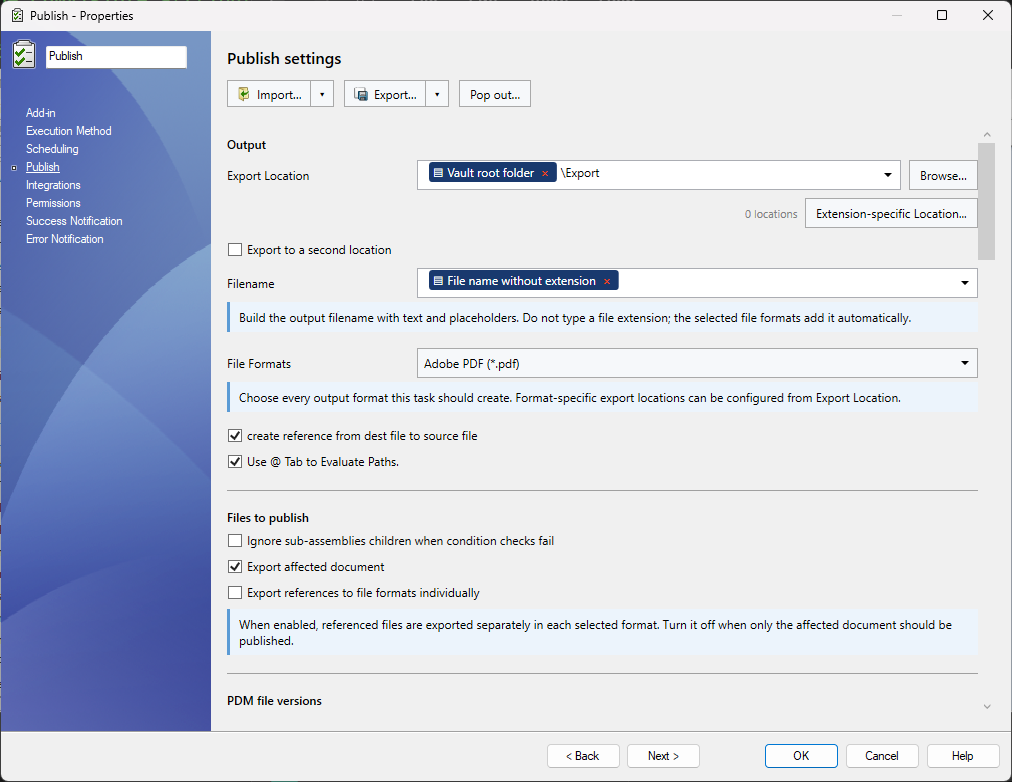
Use Pop out... for a resizable editor. Counts beside settings show how many items are configured.
Recommended First Setup
Review these settings before saving a new task:
- Export Location
- Filename
- File Formats
- Use this version of SOLIDWORKS
- Template, when processing assemblies or quantities
- Vault Activity Logs, when testing a new task
Output
| Setting | Summary | Details |
|---|---|---|
| Export Location | Destination folder or dynamic path pattern for generated files. | Open |
| Export to a second location | Copies outputs to an additional folder using the same placeholder editor. | Open |
| Filename | Output filename pattern. Use variables to keep exported files unique. | Open |
| File Formats | Select one or more export formats such as PDF, DXF, DWG, STEP, eDrawings, 3MF, IFC, and others. | Open |
| Use @ Tab to Evaluate Paths | Allows the @ configuration tab to resolve variables used in the export path or filename. |
Open |
| Create Reference from Destination File to Source File | Creates a PDM reference from the exported file back to the source file. | Open |
| Delete Duplicates Outside the Destination Folder | Removes duplicate output files outside the destination folder. | Open |
| Map Variables Between Source and Destination File | Copies mapped metadata from the source file to the generated output file. | Open |
Export Behavior
| Setting | Summary | Details |
|---|---|---|
| Export affected document | Exports the top-level file that triggered the task. | Open |
| Export references to file formats individually | Exports referenced documents as separate output files. | Open |
| Convert multiple configurations | Processes every part and assembly configuration instead of only one configuration. | Open |
| Ask user to select configuration on startup | Lets the user select configurations from each input part and assembly before publishing. | Open |
| Ask user to specify files on task launch | Prompts the user to choose files, references, and formats at launch. | Open |
| Archive all exported documents (.zip) | Creates a ZIP package containing the exported files. | Open |
| Export sheet metal parts to 1:1 flat pattern DXF | Exports sheet metal flat patterns as 1:1 DXF files. | Open |
| Split Bodies | Saves multi-body parts as separate body files. | Open |
| Use Microsoft Print To PDF to save PDFs | Uses the Windows PDF printer path for PDF creation. | Open |
| Setting | Summary | Details |
|---|---|---|
| Merge exported PDFs into one master PDF | Combines PDF outputs into one master PDF. | Open |
| Add table of content to merged PDF | Inserts a generated table of contents into the merged PDF. | Open |
| Table columns | Controls the columns shown on the generated PDF table of contents. | Open |
| PDF bookmarks | Defines bookmark text for merged PDFs. | Open |
Drawing Sheets
Export referenced models from drawings
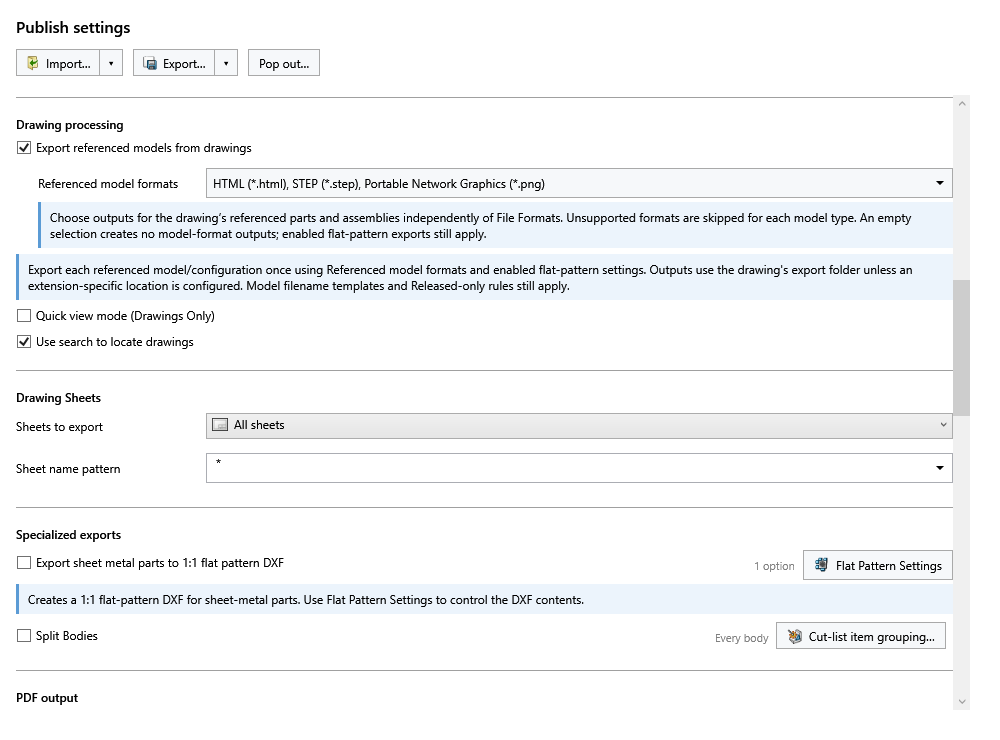
Enable Export referenced models from drawings, then choose Referenced model formats beneath the checkbox. These formats apply to the referenced parts and assemblies, independently of File Formats.
| Selection | Output |
|---|---|
| File Formats: PDF | Drawing PDF |
| Referenced model formats: HTML, STEP, PNG | Model HTML, STEP and PNG |
Unsupported formats are skipped. Flat-pattern DXF uses its separate setting and can run with an empty model-format selection.
The task prefers the drawing view's configuration, then the PDM reference configuration. Blank values and @ resolve to Default, or the first real model configuration. A missing named configuration is reported. Repeated views of the same model/configuration export once per drawing; components inside a referenced assembly are not recursively exported.
Outputs use the drawing's folder rules and the model's filename template. Include (ConfigurationName) when exporting different configurations. Released-only checks still apply.
Sheet selection
| Setting | Summary | Details |
|---|---|---|
| Sheets to export | Choose all drawing sheets or only sheets matching a pattern. | Open |
| Sheet name pattern | Wildcard pattern used when exporting matching sheets only. | Open |
PDM and SOLIDWORKS
| Setting | Summary | Details |
|---|---|---|
| Work with latest version | Forces PDM to get the latest file version before publishing. | Open |
| Quick view mode (Drawings Only) | Opens drawings in quick view mode where supported. | Open |
| Use search to locate drawings | Uses PDM search behavior when drawings are not beside the model. | Open |
| Use this version of SOLIDWORKS | Selects which installed SOLIDWORKS version should run the task. | Open |
| Hide Task in File Explorer | Hides the task command from the PDM File Explorer right-click menu. | Open |
BOM, Activity Logs, and Advanced
| Setting | Summary | Details |
|---|---|---|
| Template | Selects the BOM template/layout used for quantity-aware output. | Open |
| Calculation method | Chooses how references are calculated for BOM and quantity evaluation. | Open |
| Use drawing-derived BOM | Uses the first named BOM saved on the associated assembly drawing, with the configured calculated BOM as a fallback. | Open |
| Vault Activity Logs | Creates detailed logs in the configured vault folder when publishing starts. | Open |
| Server-Synced Activity Logs | Sends activity logs to the server for future support review. | Open |
| Log Folder (Vault Only) | PDM vault folder where logs are stored. | Open |
| Ignore sub-assemblies children when condition checks fail | Prevents children of failed sub-assemblies from being processed. | Open |
Related Pages
Task input file types
At the bottom of Publish, use Run this task on these file types to choose which input files the task processes.
- Select Part (.sldprt), Assembly (.sldasm), and Drawing (.slddrw) using their checkboxes. All three are selected by default.
- Choose Add more extensions… to enter additional extensions, such as
.docxor.xlsx. The count appears beneath the button. Apply saves the list; Cancel keeps the previous list. - Leave all three checkboxes unchecked and remove all additional extensions to allow all file types. This removes the input filter; it does not add support for new converters.
The filter applies to selected or scheduled task input files. It does not select output formats or restrict which referenced documents are exported. Input-extension choices are included when task settings are exported and imported.
For an interactive launch, if no selected files match the configured extensions, the task is canceled before it enters the queue. The execution host also checks the filter when processing inputs, including scheduled items. Canceling the file-selection dialog cancels the launch.
Task timeout
Under Publish → Task limits, set Task timeout (minutes). The default is 20 minutes; enter a value from 1 to 1440.
The limit covers all selected inputs together. When it expires, the task is marked Failed, the timeout is logged, and task-owned SOLIDWORKS processes are stopped. Outputs already created are retained.

Multiple selected files
When a workflow passes several files to one task, each eligible file gets its own publishing pass, in the order supplied. Parts, assemblies and drawings follow their usual export settings. Each pass uses its own references and output paths. An explicit task-wide configuration applies to every file. Otherwise each file uses its own configuration.
One log covers the whole task. It starts with a count such as Processing 3 of 4 input files. and identifies each eligible file as Task input 1/3, 2/3 or 3/3. Failed inputs or exports mark the task as failed. Cancellation, timeout or loss of the SOLIDWORKS connection can stop the remaining files.
PDF merging and ZIP creation run separately for each input. See Merge exported PDFs for an example with multiple assemblies.
Use latest released versions only
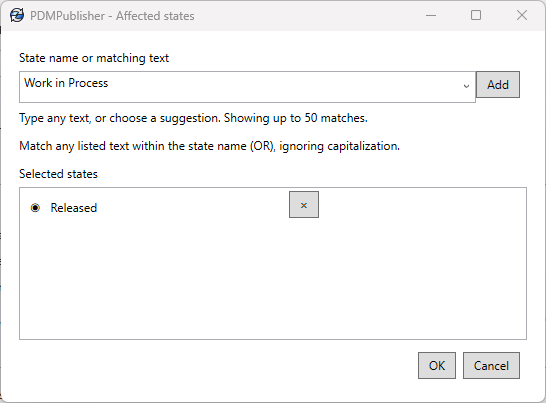
Enable Use latest permitted states to choose versions using the state names in Affected states…. The count beside the button shows how many entries are selected.
Type a state name or part of a name, then add it to the list. Suggestions load in the background from the vault's workflows; you can type and add an entry while they load. Use X to remove an entry. Matching ignores capitalization and accepts any listed entry. The default is Released, which also matches Chassis Released and Unreleased; choose your text carefully.
If the current state matches, the task uses the latest version. Otherwise, it searches history for the most recent version that entered a matching state. The log records the selection. This overrides Work with latest version and the BOM version selection.
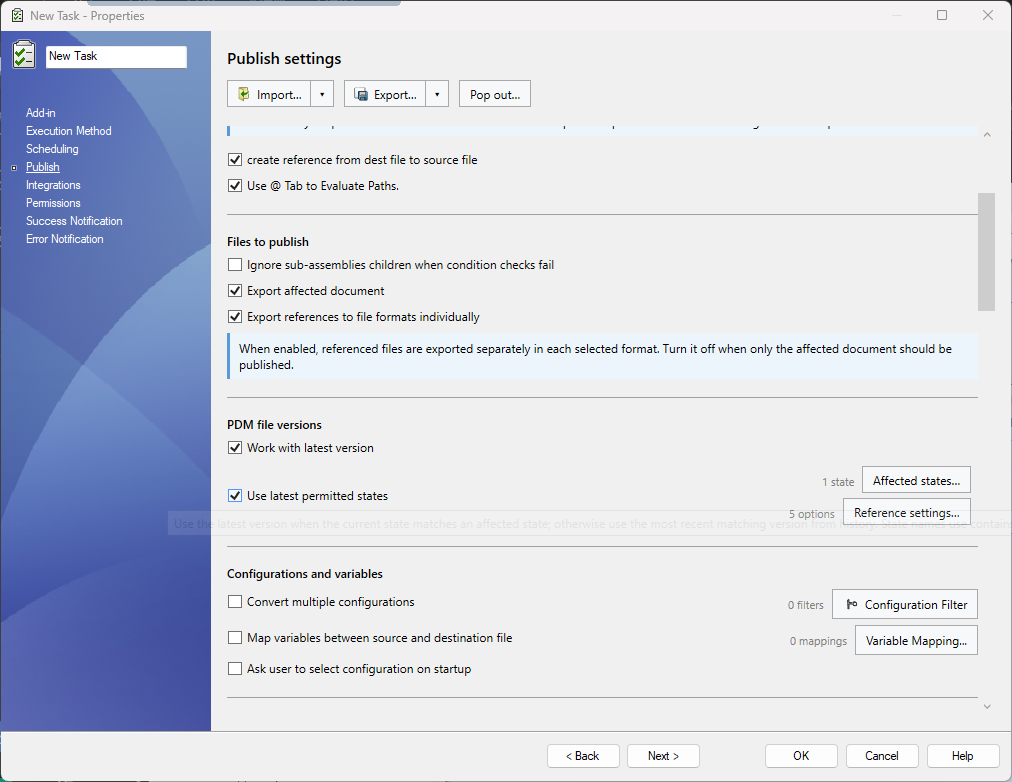
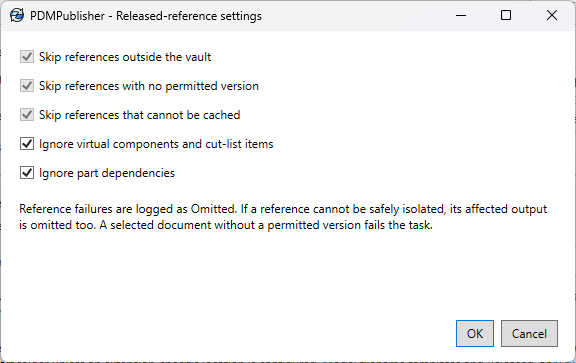
Choose Reference settings… beside the checkbox. The count shows how many options are enabled. All five start checked. The three Skip options are always enabled; reference failures cannot be made fatal. OK saves changes to the remaining options and Cancel keeps the previous settings.
| Setting | When checked |
|---|---|
| Skip references outside the vault | Omit confirmed external files that cannot have a PDM Released version. |
| Skip references with no permitted version | Omit references with neither a qualifying current state nor a Released version in history. |
| Skip references that cannot be cached | Omit references whose Released copy cannot be retrieved or verified, including access-denied and file-not-found failures. |
| Ignore virtual components and cut-list items | Keep embedded content with its parent without checking it independently. |
| Ignore part dependencies | Check the parent .SLDPRT without independently checking or replacing its file dependencies, regardless of extension (including STEP). Assembly and drawing references still follow normal checks. |
Unchecking either Ignore option enables independent checks for those references. If a reference cannot be verified, it is omitted and the reason is logged. PDM reference types determine embedded content; names such as Sheet<1> do not.
Reference failures and omissions
The same rules apply to references discovered by SOLIDWORKS that were missing from the PDM reference list. External files, such as a Toolbox bolt outside the vault, are excluded from the temporary publishing copy without automatically omitting their parent assembly. Newly discovered vault files go through Released-version selection and caching; the task closes its SOLIDWORKS session before updating the cache.
A reference that cannot be checked, cached, or isolated is reported as Omitted, with its filename and the reason in the task log. Exclusion failures include the child path and underlying reason; if SOLIDWORKS provides no detailed error, the log says so. Other safe outputs continue. This includes missing files, access-denied errors, unreadable history, and references with no Released version.
Omissions flow downward only: an omitted file can exclude descendants used only by that branch, but does not automatically omit its parent assembly or drawing. Shared descendants remain eligible through another retained branch, and independently selected files retain their own output eligibility.
The task excludes a failed child from the parent's temporary publishing copy and verifies the replacement. A parent is omitted only if its own preparation or verification fails, not simply because a child was omitted. Original files remain unchanged.
A selected top-level document without a Released version still fails validation. If its Released copy cannot be cached or prepared safely, that output is omitted. Unrelated export or task errors can still fail the task.
Troubleshooting reference checks
Cannot safely identify released reference means the SOLIDWORKS dependency could not be matched uniquely to a child of the current parent. The task checks full paths, historical PDM reference paths, and unique filenames. If no known child matches, it looks up the discovered path in PDM and applies the reference rules above. An unmatched path is not automatically treated as outside the vault. Omitted children remain available for this lookup. If both Bracket.SLDPRT and Bracket.SLDASM match, the affected output is omitted and the log identifies the parent and candidate paths/IDs instead of guessing. A part and assembly sharing a base name are valid when the reference includes its extension.
A message such as Cannot inspect a child reference for released-only publishing does not mean that the named parent file is unreleased. Read the child details in the task log: name, referenced-as value, found path, file/folder IDs, referenced version, and PDM file type. The log also identifies the parent and the selected Released version.
Include the task log when requesting support. See Task log filenames and retries for log naming and how repeated runs replace previous log contents.