Integrations Task Page
Use Integrations to push published document items and selected PDM variables to an ERP connector after a successful PDM Task publish job.
Important
This page configures unattended PDM Task integration. For interactive Push and Pull inside SOLIDWORKS, see ERP Sync.
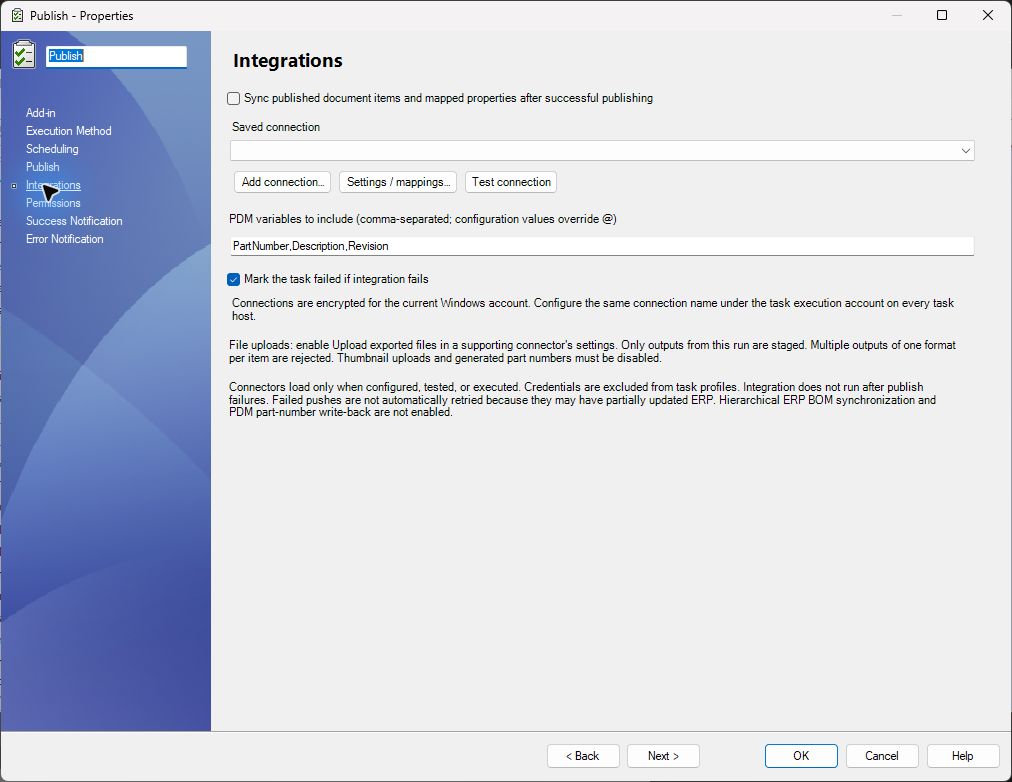
Configure a Connection
- Install a supported ERP connector and its matching
PDMPublisher.ERPExtension.dlldependencies in a stable local folder on every task host. - Open the task in SOLIDWORKS PDM Administration and select Integrations.
- Select Add connection..., then choose the connector DLL.
- Enter a connection name and configure the connector's server, credentials, and property mappings.
- Select Test connection. A successful test verifies connectivity but does not publish ERP data.
- Configure the same connection name under the Windows account that runs the task on every task host.
- Enable Sync published document items and mapped properties after successful publishing.
- Select whether an integration error should mark the PDM task as failed, then save the task.
Connections are encrypted for the current Windows user and stored locally under %LOCALAPPDATA%\Blue Byte Systems Inc\PDMPublisher\TaskConnections. Credentials are not included when task settings or profiles are exported.
Settings
| Setting | Behavior |
|---|---|
| Saved connection | Selects the locally configured connector connection. The same name must exist for the task execution account on every host. |
| PDM variables to include | Comma-separated PDM variables added to each integration item. A configuration value overrides the matching @ value. |
| Mark the task failed if integration fails | Reports the completed PDM task as failed when the connector Push fails. Published files are retained. |
Run Behavior
- Integration runs only after publishing completes without output-copy or conversion failures.
- The connector receives document items, requested PDM variables, and the successfully published files associated with the current run.
- A failed Push is not retried automatically because the connector may have already updated part of the ERP data.
- When Mark the task failed if integration fails is cleared, the task keeps the publishing result and reports the integration failure in its status message.
File Uploads and Limits
Enable file uploads in the selected connector only when required. PDMPublisher stages only files produced by the current run. Each item can provide only one output of a given format; ambiguous duplicate formats stop the integration.
The PDM Task integration does not currently support thumbnail uploads, generated part-number write-back, hierarchical ERP BOM synchronization, or PDM part-number write-back. Disable connector settings that require thumbnails or generated part numbers.
Troubleshooting
| Message or symptom | Check |
|---|---|
| Connection is unavailable | Sign in as the task execution account and configure the same connection name on that host. |
| Connector DLL is missing | Restore the connector, ERP contract DLL, and its dependencies at the saved path. |
| Integration was skipped | Review the publish result first; integration does not run after publishing failures. |
| Push failed after files were created | Review the connector and ERP system before retrying. The first attempt may have made partial ERP changes. |
| No attachment was found | Confirm that the required extension was selected and successfully published for every item. |
For connector-specific credentials and mappings, use the documentation for the selected ERPNext, Odoo, or Business Central connector.