
Use Latest Permitted States Only
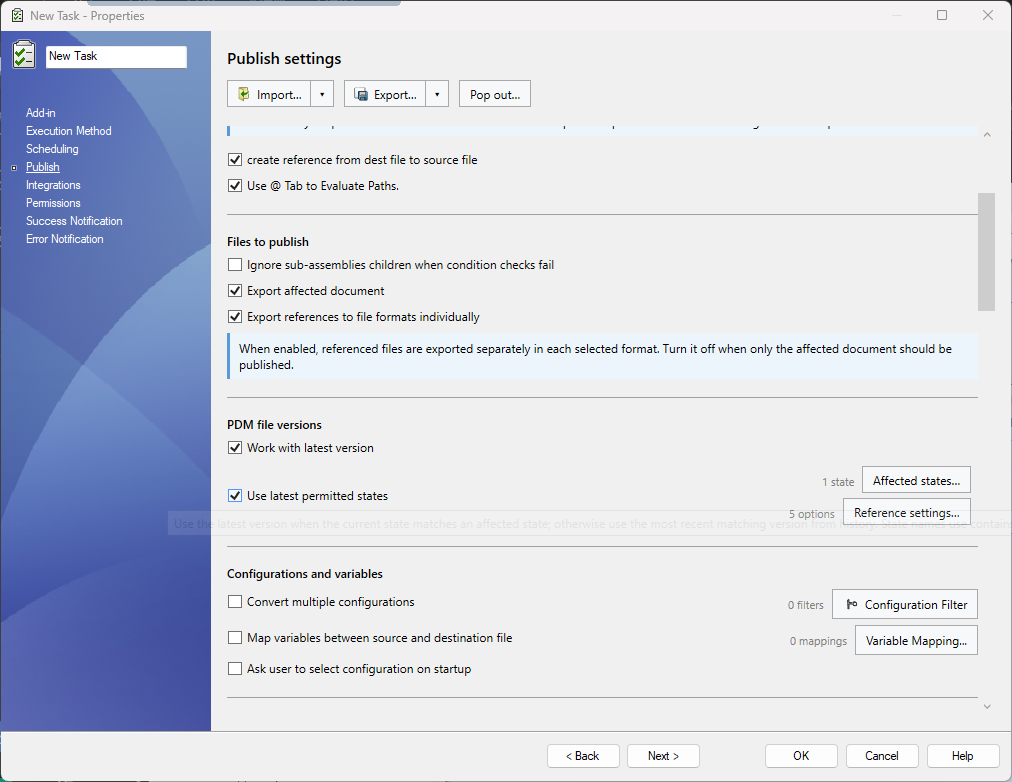
Enable Use latest permitted states in the task's Publish settings to select file versions by workflow state. This overrides Work with latest version and the BOM version selection.
Affected states
Select Affected states…, enter a state name or matching text, and select Add. Vault suggestions load in the background. You can add text without choosing a suggestion. Select X to remove an entry. The count beside the button shows the number of entries.
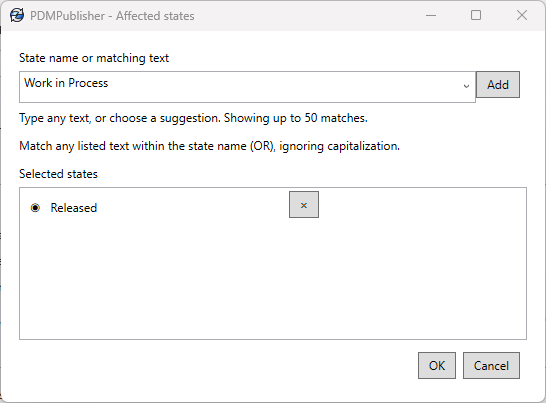
A state matches if its name contains any listed text, ignoring capitalization. The default text, Released, also matches Unreleased. Matching is not limited to exact names.
- If the current state matches, use the latest version.
- Otherwise, use the most recent version that entered a matching state.
- If no version qualifies, omit a reference or fail validation for a selected top-level document.
Reference settings
Select Reference settings… to control how dependencies are handled.
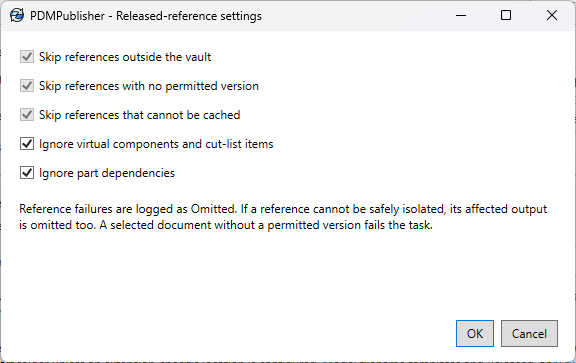
All five options start checked. The three Skip options are always checked and cannot be changed. The two Ignore options are editable. The count beside the button shows how many options are enabled. OK saves changes; Cancel discards them.
Skip references outside the vault
Omit references confirmed to be outside the PDM vault. These files have no PDM version to select. An unidentified path is checked before it is classified as external.
Skip references with no permitted version
Omit a reference if neither its current state nor its version history provides a matching version. Record the filename and reason in the log.
Skip references that cannot be cached
Omit a reference if the selected version cannot be retrieved into the task machine's local vault cache or verified. Causes include access denied and file not found. Another version already on disk is not used as a substitute.
Ignore virtual components and cut-list items
When checked, handle embedded content with its parent without an independent version check. PDM reference types identify this content, not filenames.
When unchecked, attempt independent checks. Omit and log references that cannot be verified.
Ignore part dependencies
When checked, validate each .SLDPRT without independently checking or replacing its file dependencies. This applies to all dependency extensions, including STEP and SOLIDWORKS files. SOLIDWORKS may still need those dependencies to open the part.
When unchecked, check the part's dependencies too. Assembly components and drawing references follow the normal reference rules in either case.
Omitted references
The log records Omitted, the filename, and the reason. The task excludes the failed reference from a temporary publishing copy and verifies that copy before export. Original files remain unchanged.
Omission applies downward to descendants used only by the omitted branch. It does not automatically omit the parent. Shared components and independently selected files remain eligible through their retained references or selections.
A parent output is omitted if its own preparation or verification fails, including when a failed child cannot be safely excluded. Other safe outputs continue.
References discovered later by SOLIDWORKS follow the same rules. The task closes its SOLIDWORKS session before updating the cache for newly discovered vault references.
Task failures
A selected top-level document with no permitted version fails validation. If a permitted version exists but cannot be cached or safely prepared, that output is omitted. Other export or task errors can still fail processing.
Check the generated files and task log to confirm what was published. See reference troubleshooting for identification and isolation errors.